
Manage Tickets as Support
So, you're on the support team and tickets from Discord are popping up in Jira - great news! Now, let's walk through how to smoothly manage these tickets without losing your sanity (or your sense of humor).
🎟️ Where Do Tickets Come From?
When users raise tickets via Discord (/ticket command or ticket panel), an issue is created in your configured Jira Software, business or Service Management project. A linked Discord discussion lets your team talk with the requester.
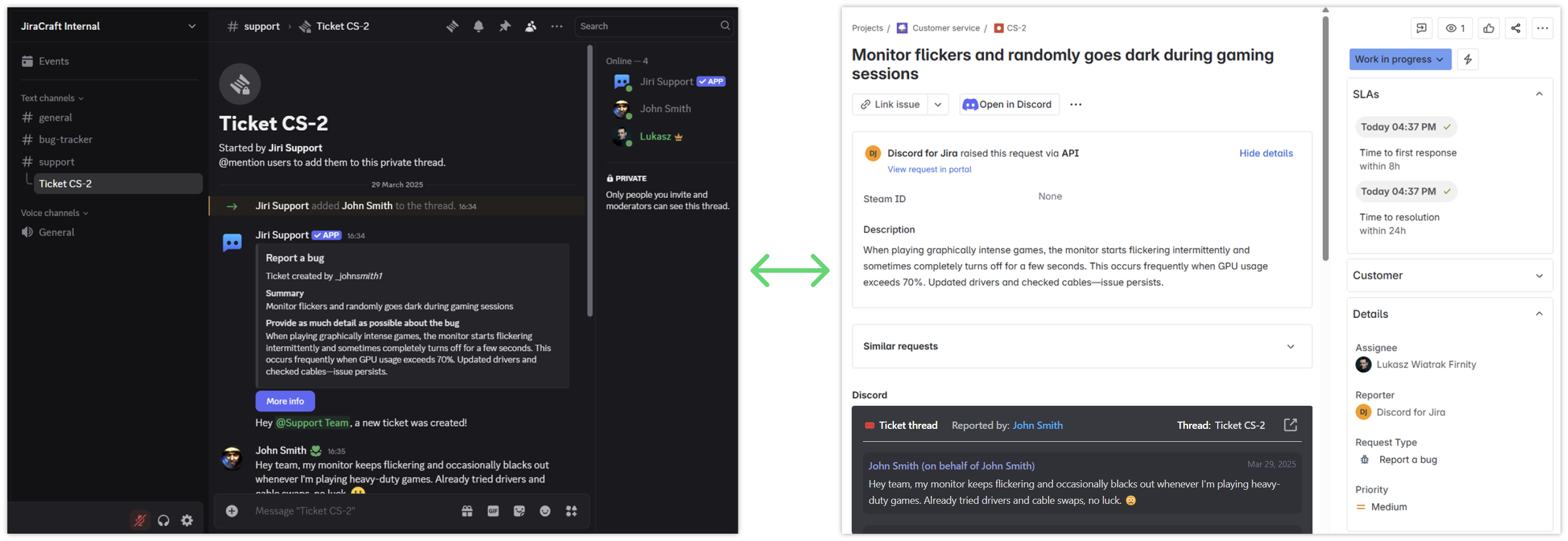
When you click the "More info" button under ticket details in Discord, you'll see the current status and a link to the corresponding Jira ticket (if you're part of the support team), or just a direct link to the ticket thread (if you're the original reporter). This ensures you always get the most relevant link based on your role.
🔗 Link an existing ticket thread (optional)
If you already have a Discord thread you want to link to a Jira ticket:
- Open the Jira ticket.
- In the Discord panel, click Link Ticket Thread.
- Paste a Discord thread link or raw thread ID. The dialog auto-selects the server, channel, and thread.
- If you paste a raw thread ID and multiple servers are connected, pick the server first.
- Click Link Thread.
If the panel is hidden behind the Discord app button, ask a Jira administrator to show the Discord panel on all work items.
💬 Chatting in Discord Discussions
Each Jira ticket has a linked Discord thread or forum post where the user first reported their issue. This is your team's chat space with the user.
- Use Discord discussions to:
- Ask for more details.
- Provide quick updates.
- Exchange cat gifs (optional but highly recommended 🐱).
Depending on your team's ticket settings, being assigned in Jira may add you to the Discord discussion automatically. If it does not, open the Jira Discord panel and use the Join Thread button when you're ready to participate.
If you respond in Discord, your message uses your Discord identity. If you respond in Jira, Jiri Support delivers it to the ticket discussion. Ordinary Jira replies include the Jira comment author's name.
- Software and business projects: write a normal Jira comment. It is automatically sent to the ticket discussion. There is no separate internal-note mode; do not put internal discussion in unrestricted comments. Comments restricted to a Jira group or project role are not sent.
- Service Management projects: use Reply to customer to send a reply. Internal notes stay in Jira.
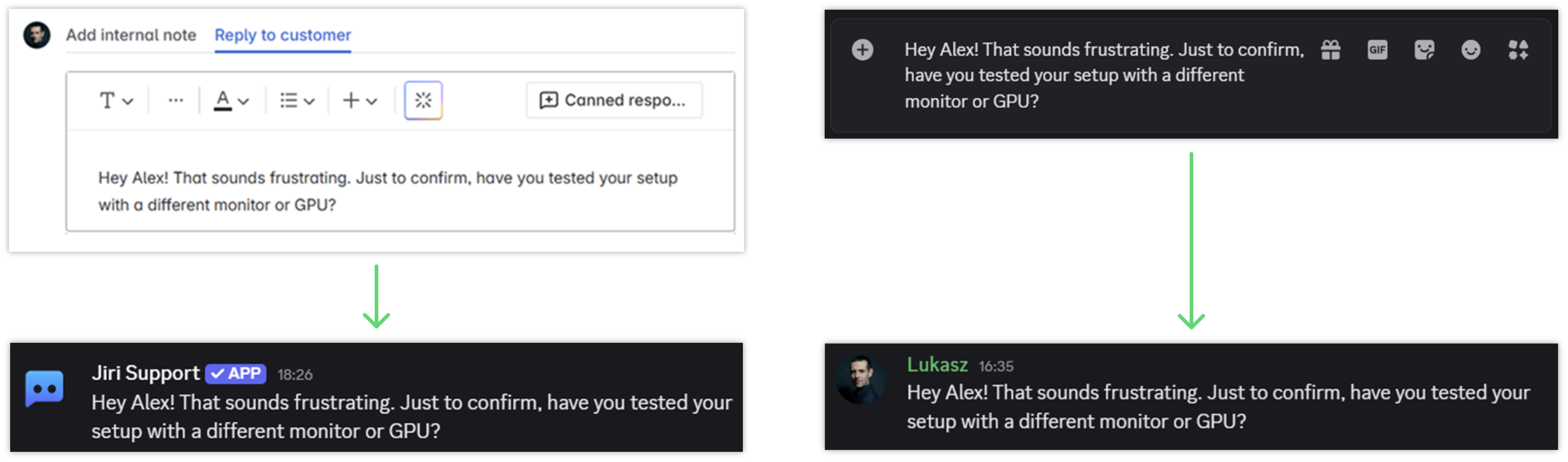
All your messages stay organized within the Discord discussion - nice and tidy!
🔄 Keeping Jira and Discord in Sync
Here's the best part:
- Normal unrestricted comments in Software and business ticket projects, and public replies in Service Management, automatically appear in the linked Discord ticket discussion. Comment edits and deletions are not synchronized. Long ordinary Jira comments include a link to the full comment when shortened for Discord.
- To mention a Discord user in that reply, type
<@DiscordUserID>or@exact_discord_username. Usernames must match a member of the ticket’s Discord server exactly; display names and nicknames are not supported. Unknown names stay as text. Email addresses and code snippets do not create mentions. Linked Jira user mentions continue to work. - Replies suppress mentions of the Jira author, roles, and
@everyone/@here. Discord notification settings can still affect whether a recipient receives a notification. - A text message in the Discord ticket discussion creates a Jira notification comment with the actual Discord author and a link to the original message. The message body stays in Discord. Open the linked Discord panel in Jira to view the conversation, fetched from Discord on demand. A staff message keeps that staff member's identity; it is not relabeled as the ticket requester.
So you and the user can chat wherever you're comfy, and everything stays in one place.
📌 Quick Status Updates
Anytime you change the ticket status in Jira (like moving from "Open" to "In Progress"), our helpful bot posts a friendly update in Discord.
For example:
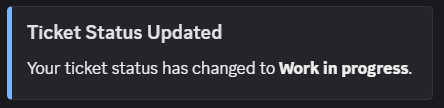
Users love knowing things are moving forward!
📎 Adding Screenshots and Files
Files uploaded in the ticket creation form are attached to the Jira issue. Later Discord attachments are not automatically copied into Jira attachments. Include a file link in a text message when you need it in the Jira conversation.
✅ Resolving and Closing Tickets
Fixed the issue? Awesome! Mark the ticket as resolved in Jira, and the bot will update Discord immediately:
🎉 Ticket SUPPORT-123 has been resolved.
Depending on your team's settings, resolved threads might automatically close or lock to keep your support channel neat and clean. (Admins can configure this - handy, right?)
You can also manually close ticket threads in Discord. If "Auto-resolve Jira Ticket on Thread Closure" is set by your admin (learn more in the Ticket Flow Configuration Guide), then the ticket will automatically close in Jira with an AI-powered resolution type.

🕵️ Finding Old Ticket Threads
Need to revisit an older ticket? No sweat:
- Click the "Threads" button at the top of your support channel - older or closed threads will appear neatly labeled by Jira ticket keys (like
SUPPORT-123). - Alternatively, click "Open in Discord" directly from the Jira ticket (handy!).
🚨 Automatic Role Assignment (Make sure tickets don’t get lost!)
Your Jira admin might have set up automatic role assignment for incoming tickets. This means:
- Tickets could automatically be assigned to a Discord role you're in (like
@SupportTeamor@BillingTeam). - You’ll instantly get notified when new tickets arrive - no ticket gets left behind!
Encourage your Jira admin to enable this feature; it’s a great way to keep things running smoothly!

Who can see the discussion
Text-channel ticket threads can be private or public, depending on your project's settings. Forum posts are visible to everyone who can access the forum. Discord permissions, including administrator access, still apply.
In Software and business projects, normal unrestricted Jira comments are sent to that discussion automatically. Check its audience before commenting.
🤓 Pro Tips
- Use @mentions to ping teammates if you need help - they'll automatically be added to the thread.
- Clearly define ticket lifecycle expectations within your team to avoid confusion.
- Regularly review auto-closed tickets (especially if your team uses automated resolution) to ensure accuracy.
- Keep communication friendly, clear, and concise (with a pinch of humor, if that's your style).
🛟 Still Need Help?
Got questions or something's not quite working? Don't be shy - drop by our Discord for Jira Community. We're always ready to help (and laugh).
Happy supporting! 🎫