
Configure Ticket Types and Fields
Choose which Jira types and fields your Discord ticket form uses. Software and business projects use issue types. Service Management projects use request types.
📋 Before You Start:
- Your Discord ticket destination and "Jiri Support" bot connected (setup guide)
- Admin rights on Jira
Software and business projects
Open Project settings → Apps → Discord → Tickets, choose your ticket configuration and open Ticket Types. Add or edit an issue type, then choose its Fields. These are the inputs the Discord requester completes.
Use Fixed values → Add field to set a value when each ticket is created, such as Priority = Medium. Fixed values do not take space in the Discord form. Leave a field unset when Jira already provides a usable default.
Date fields offer Specific date, Today, Tomorrow, Yesterday, and Days from today. Use a negative number to count backwards. Relative dates use the Jira site's timezone on the day the ticket is created. For example, a due date set to Days from today with 3 gives each new ticket three calendar days.
- Text and numbers: Enter the value directly. Jira's built-in Environment field takes text such as
Staging, Chrome. - Priority and choices: Pick Priority or a standard Jira single-select value from a dropdown. Use the multiselect for Components, checkboxes, and standard Jira multiselect fields. An option field needs at least one Jira choice before you can add it.
- Labels: Enter one label at a time and press Enter.
People fields (including Assignee), versions, date-and-time fields, radio buttons and cascading selects are outside the fixed-value editor’s supported types.
Every required Jira field needs a supported form input, a valid fixed value or a usable Jira default. The ticket type editor shows what to fix below the relevant control and disables saving when an error blocks the configuration. The form needs at least one input and supports at most five. If a required field is unsupported, change the Jira field configuration or choose another issue type. Subtasks and hierarchy creation are not supported.
Save the type, then select Save Changes on the ticket configuration. If Jira fields or options change later, reopen the type and correct any named stale or missing values before submitting another ticket.
🎯 Service Management request types
Discord automatically grabs request types from your Jira project, but you might not need all of them cluttering your Discord.
- Head to Project settings → Apps → Discord → Tickets.
- Edit your ticket configuration or create a new one.
- Navigate to the Ticket Types tab.
- Review what's listed. Want to hide some? Click Delete next to any type you don't want.
💡 Quick tip: Less is more! Only expose the request types your Discord users will genuinely use.
Add or edit request types in Jira
Want to add a new request type or tweak existing ones? Easy-peasy:
- In the Ticket Types tab, click Service Desk ticket types to open Jira’s request types. When adding or editing a type, use Edit request form in Jira to open the selected form. Both links open a new tab and keep your Discord configuration edits in place.
- You can also navigate to Project settings → Request management → Request types in your Jira project.

-
To add a new type, click Create request type.
- Select a suitable template to start with (recommended) or choose Blank to create from scratch.
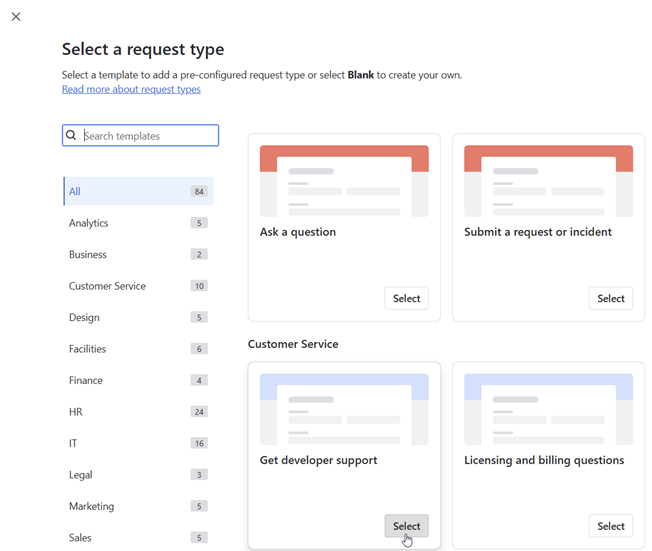
Selecting a request type template
-
Customize the selected template to fit your specific needs.
-
To rename existing ones:
- Click the request type to open its details.
- Click directly on the name of the request type at the top to edit.
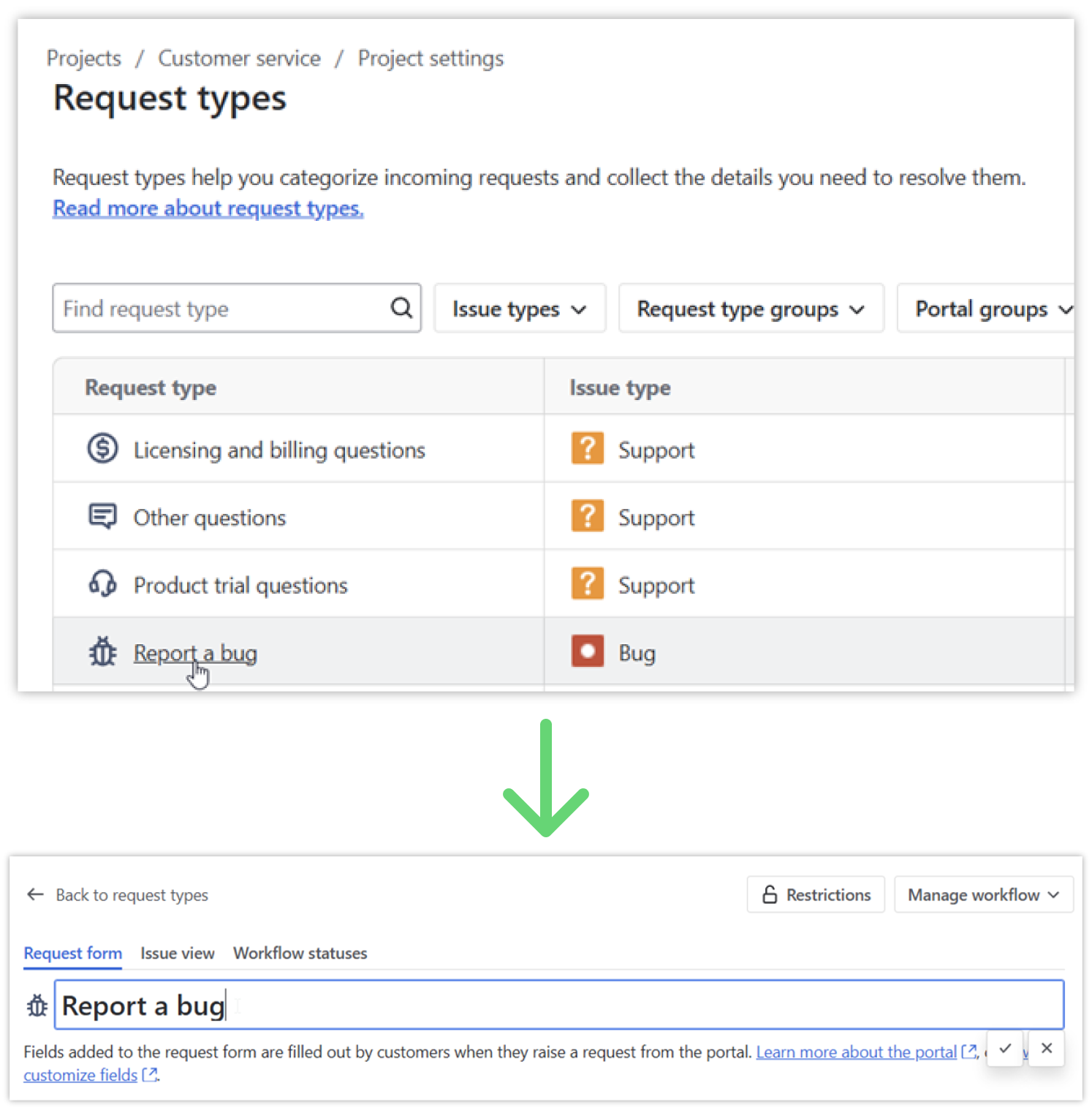
Editing a request type name
Adding Fields to Request Types
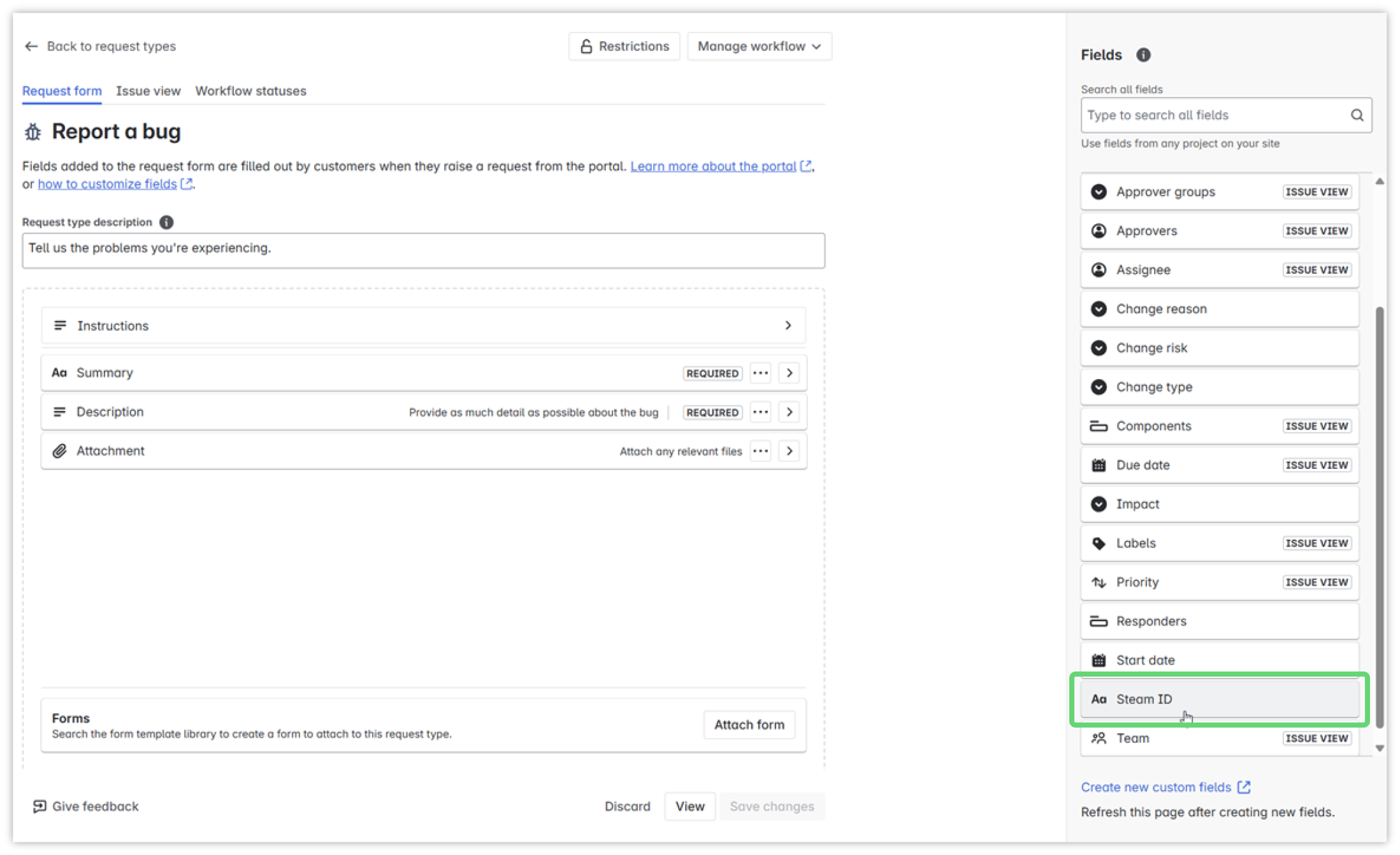
- Click on a request type to edit.
- Drag fields from the right (suggested fields) to the left (visible fields).
- Click Save changes when done.
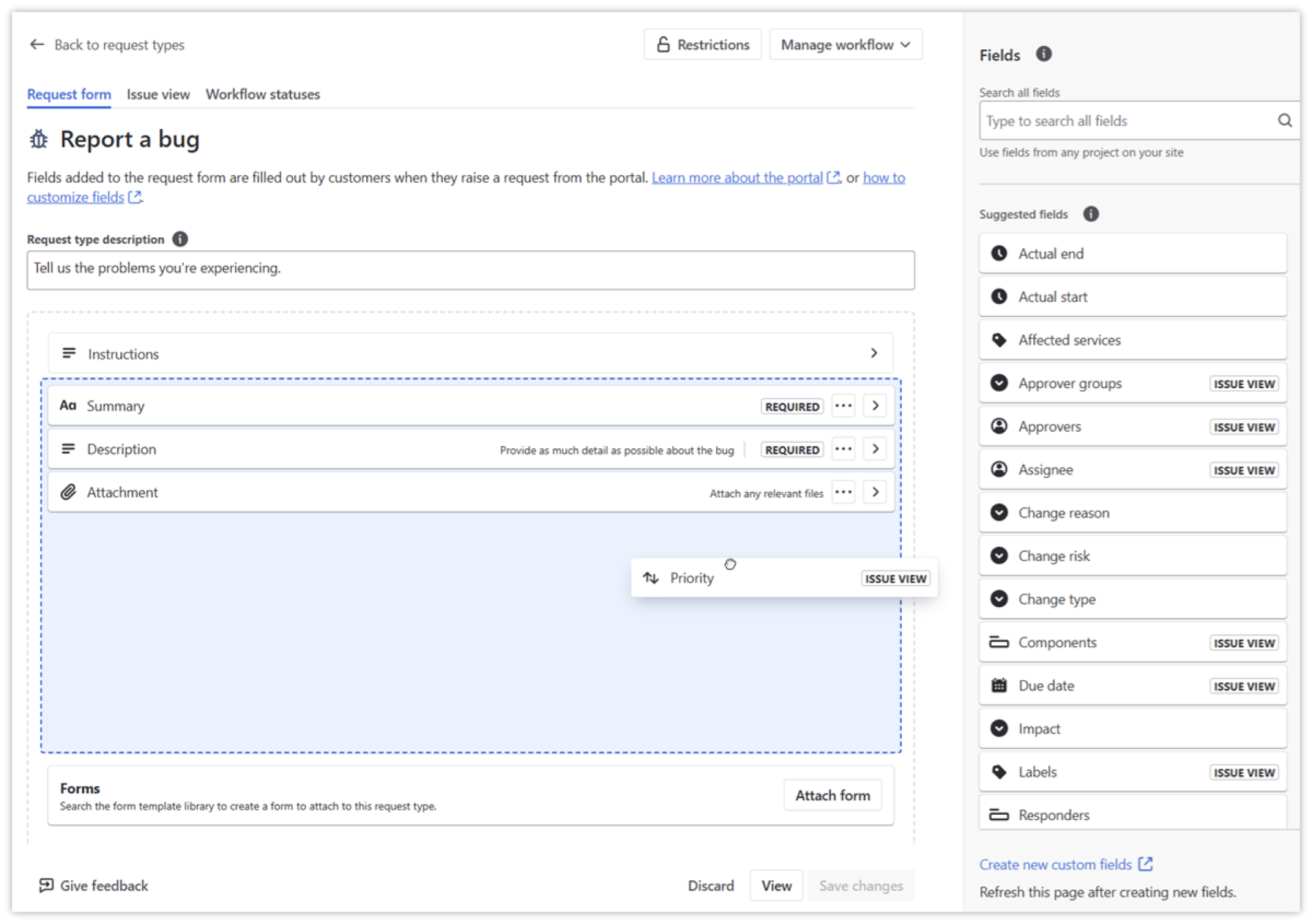
📌 Quick tip: Only add fields that truly matter upfront. You can always gather more details later!
🛠️ Advanced: Adding Custom Fields
Sometimes Jira's default fields just won't cut it. Here's how to spice things up with your own custom fields:
Step-by-Step Custom Field Creation
The quickest way to create a custom field:
- On the Request Type Details screen (look at screenshot above), click Create new custom fields located in the bottom right corner.
- Click Create custom field, choose your custom field type (text, number, date, select, multi-select - these show dropdowns in the Discord modal).
- Name your field clearly (e.g., "Steam ID" or "Operating System") and add a short description if needed.
- After creating, drag your new custom field directly into the visible fields area, then hit Save changes.
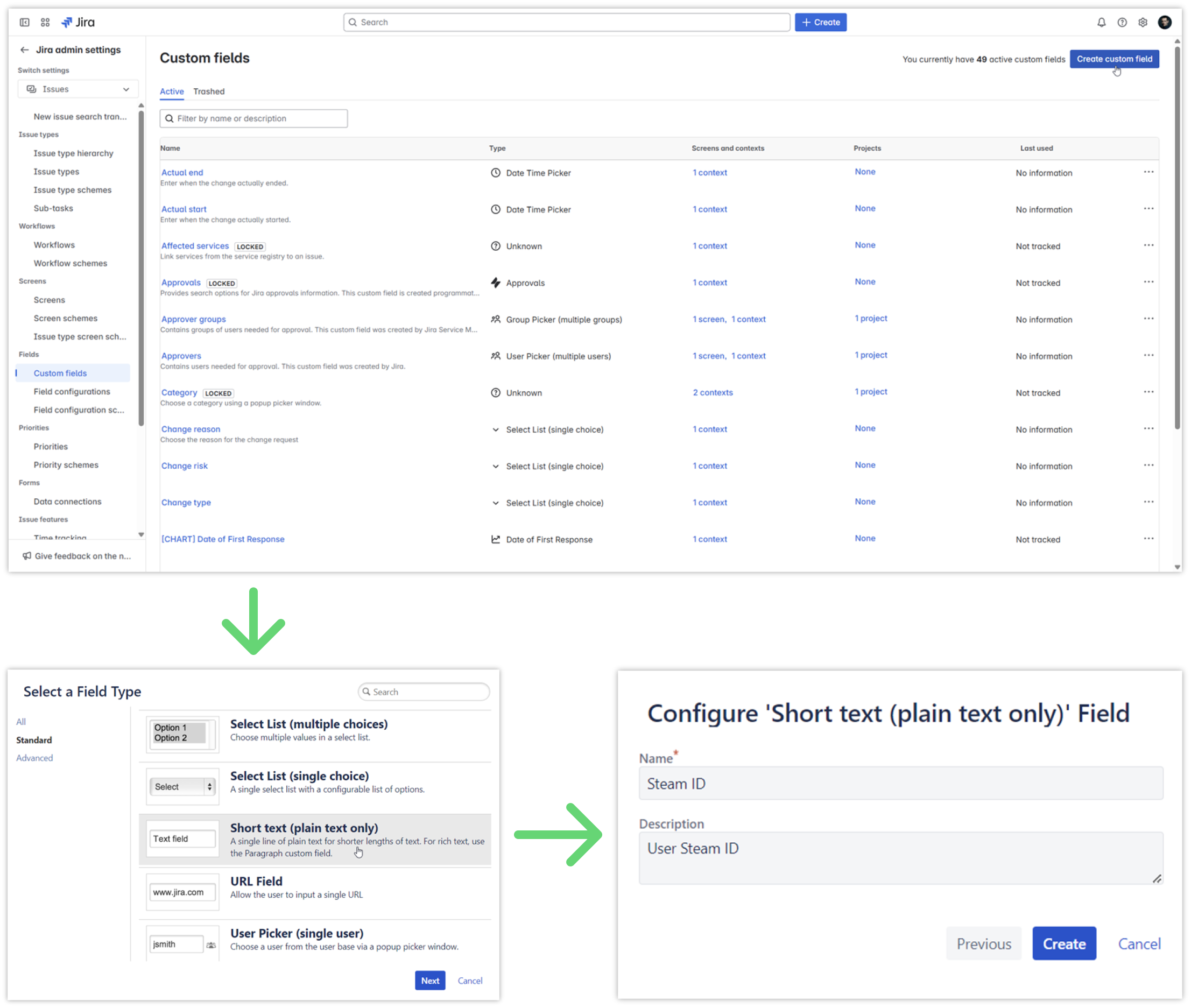
- Assign Your Custom Field to Request Types:
- Navigate back to Project settings → Request management → Request types, select your desired request type (e.g., "Report a bug").
- Drag your new field into the visible fields area, then hit Save changes.
Make the Custom Field Available in Discord
- Back in Project settings → Apps → Discord → Tickets, edit selected ticket configuration.
- Navigate to the Ticket Types tab.
- Edit the request type.
- Ensure your new custom field is visible in the Fields list.
- Click Save button to apply this change to your ticket configuration.
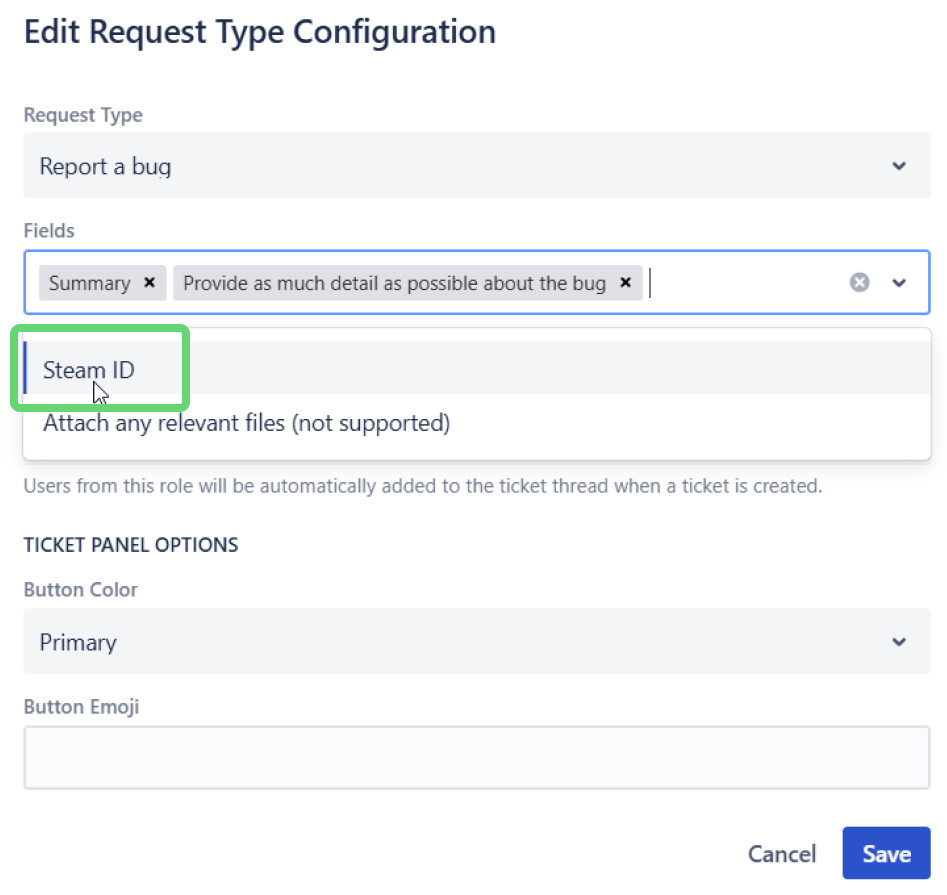
⚠️ Heads up: You can have up to 5 fields (custom or default) per request type for these to be registered from Discord.
Supported field types in Discord ticket forms:
- Text
- Number (integers or decimals, including negatives)
- Date (YYYY-MM-DD)
- Select
- Multi-select
- Labels (comma-separated)
- Attachments (upload files in the modal)
🧪 Quick Test Drive
Always good to test your setup:
- In Discord, type
/ticket, pick your customized request type, and ensure your new fields appear. - Submit the ticket and confirm the details landed safely in Jira.
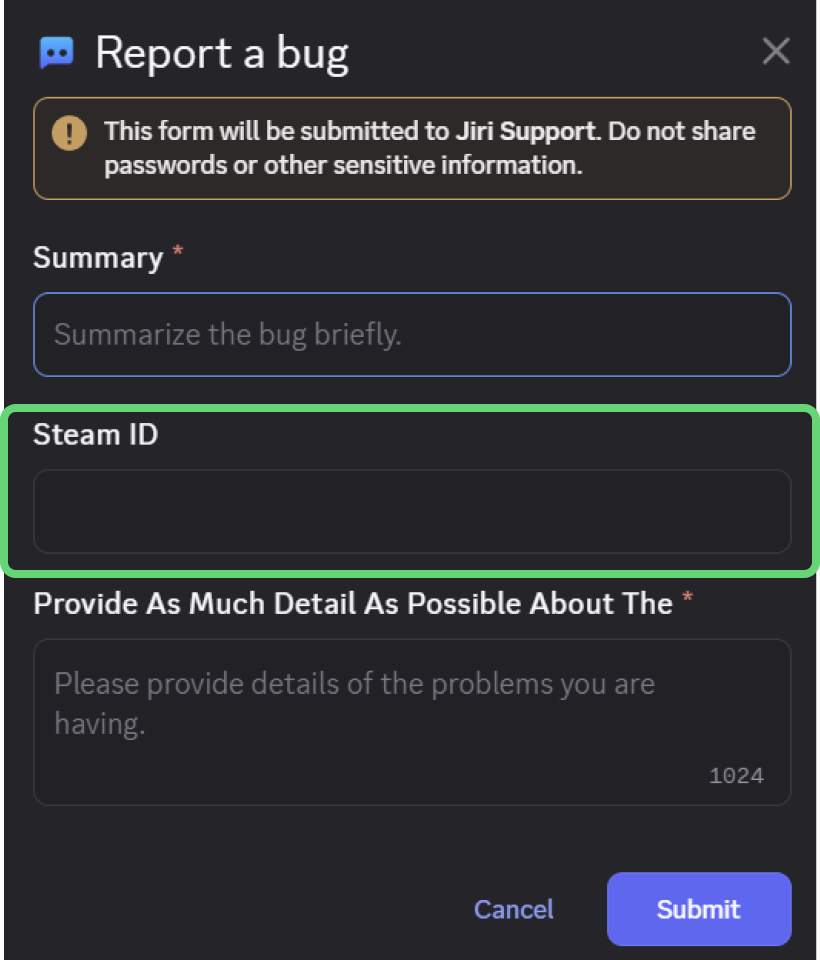
📌 Quick Field Customization Tips
- Keep it short: Discord users prefer chatting, not filling long forms.
- Clear labels: Use easy-to-understand names for fields; your team will thank you later.
- Use defaults wisely: For fields like Environment, set sensible defaults in Jira to save users time.
🕵️♂️ Troubleshooting Custom Fields
- Field not showing in Discord? Double-check you've added it to your request type in both Jira and Discord settings.
- Issues with field values? Ensure field types match and inputs follow the expected format (for dates use YYYY-MM-DD, for numbers use digits with an optional decimal).
Still stuck? We've all been there! Jump into the Discord for Jira Community - we're here to help!
Happy customizing! 🌟