
Notifications Not Working
If a channel notification rule cannot reach Discord because of a confirmed configuration problem, Discord for Jira pauses that rule. The rule remains saved and displays a red status badge in Jira.
Fix an Active attachments skipped warning
Active · attachments skipped means the rule is still delivering. Its latest successful notification omitted a local Jira upload or generated project artwork because Jiri does not have Attach Files in the destination.
Text, Jira links, action buttons, role and user mentions, and externally hosted media still reach Discord. The warning does not appear merely because the permission is missing. It appears only after content was actually omitted, and it does not send the configuration-pause email used for stopped rules.
- Select Fix permission beside the warning.
- Grant the Jiri role Attach Files in both the server role and the affected channel or category override.
- The next successful notification that can attach files clears the warning.
Saving the notification rule also clears the current warning and begins a new delivery episode. If Attach Files is still unavailable and another notification needs a local upload or project artwork, the warning returns.
Fix a paused notification rule
- Read the red status badge to see the problem.
- Select How to fix beside it and apply the matching fix below.
- Return to Jira and select Try again.
The rule resumes only after Jiri verifies the Discord server, channel, and required permissions.
Restore the server or channel
- Server unavailable: Make sure Jiri is still installed in the configured Discord server. Reconnect the server in Discord for Jira if it was removed.
- Channel unavailable: Restore the deleted channel or edit the rule and choose an existing channel.
- Channel access lost: Grant the Jiri role access to the configured channel. Check category permissions too when the channel inherits them.
Grant missing bot permissions
Jiri needs these Discord channel permissions for ordinary notifications:
- View Channel to access the destination.
- Send Messages to deliver the notification.
- Embed Links to display the Jira issue preview.
If Send notifications to Discord threads is enabled, Jiri instead needs:
- View Channel to access the destination.
- Create Public Threads to create an issue thread.
- Send Messages in Threads to deliver updates inside it.
- Embed Links to display the Jira issue preview.
Attach Files is optional for both delivery modes. Grant it to include local Jira uploads and generated project artwork. Externally hosted media does not need this permission.
First check the Jiri role:
- In Discord, open the server menu and select Server Settings.
- Open Roles, select Jiri, and choose Permissions.
- Enable every permission named by the paused-rule warning in Jira. For ordinary notifications, allow View Channel, Send Messages, and Embed Links. For thread notifications, allow View Channel, Create Public Threads, Send Messages in Threads, and Embed Links. For an Active · attachments skipped warning, also allow Attach Files.
- Save the changes.
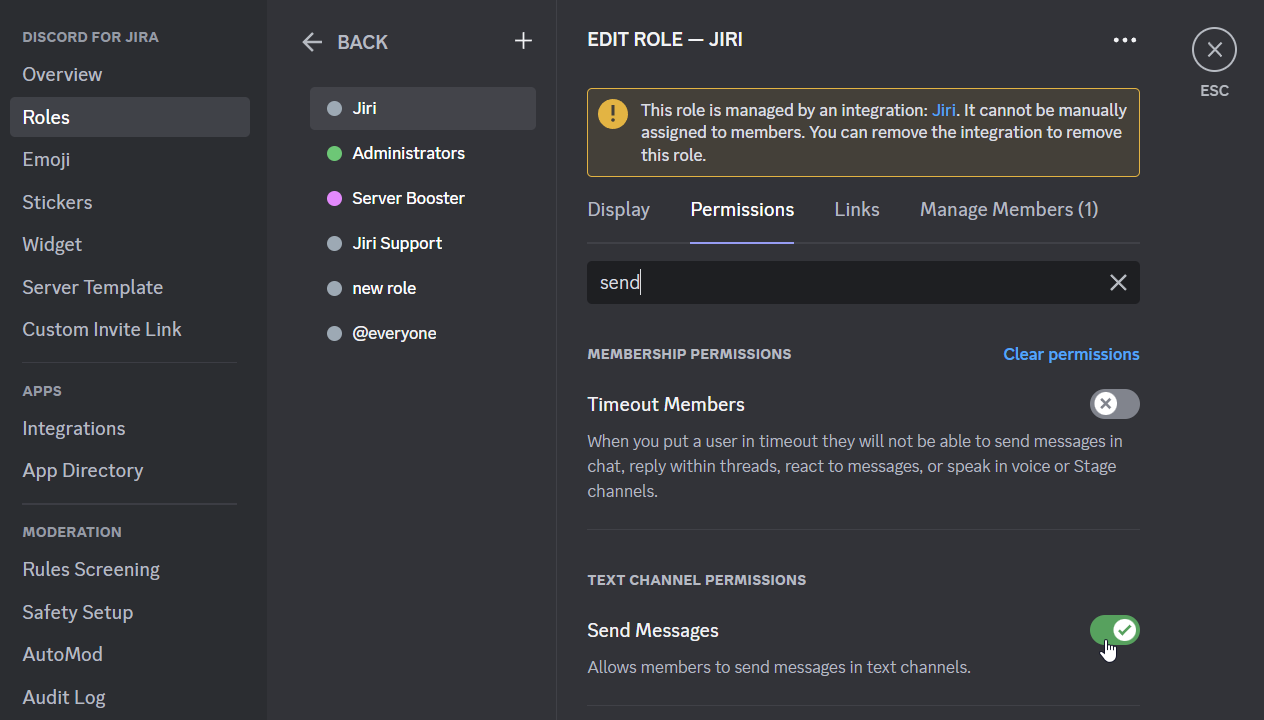
Then check the affected channel. Channel and category overrides can block a permission even when the server role allows it:
- Right-click the destination and select Edit Channel.
- Open Permissions and select the Jiri role.
- Allow every permission named by the warning in Jira, including Attach Files for an active attachment warning and the thread permissions when thread delivery is enabled.
- Save the changes.
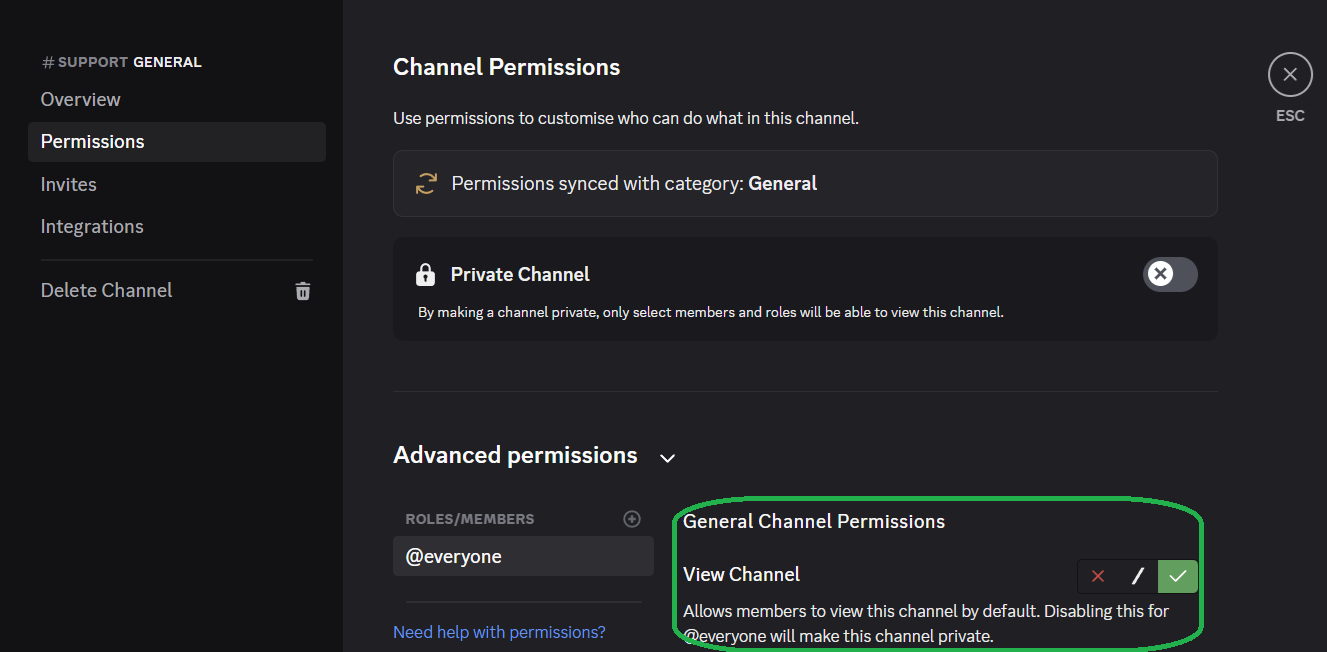
Discord's own guides explain roles and channel permissions and individual channel permission settings.
If the rule still does not resume
- Confirm you changed the exact Discord server and channel selected by the rule.
- Check both the channel and its parent category for permission overrides.
- Edit the rule and select the destination again.
- Select Try again once more.
For permissions required by other Discord for Jira features, see Configure Bot Permissions.