
Configure Bot Permissions
Your Jira and Discord are best friends now - awesome! 🎉 But every friendship has boundaries, and that's exactly what permissions are for. This guide will help you ensure your Jiri bot, Jiri Support bot, and integration settings are spot-on, so everyone plays nicely together.
🔑 Jira Project-level Permissions (Essential Stuff)
Most Jira permissions are sorted automatically when you install the Discord for Jira app, thanks to Atlassian's integration system. Nice, right?
💡 Quick fact: When installing Discord for Jira, the app automatically receives permissions to:
- Act on a user's behalf, even when offline
- Read data from Jira
- Write data to Jira
So, you don't have to manually configure these!
However, some handy features require permission configuration at the Jira project level. Let's quickly set those up:
Setting Feature-Specific Permissions in Jira
Navigate to your Jira project and go to Project Settings → Apps → Discord:
| Permission | Purpose | Available Options |
|---|---|---|
| Personal notifications | Send DMs about mentions or watched issue updates | Connected users only |
| /create command | Create Jira issues from Discord | Connected users / All users |
| /search command | Search or mention Jira issues in Discord | Connected users / All users |
Connected users = Discord users who have linked their Jira account.
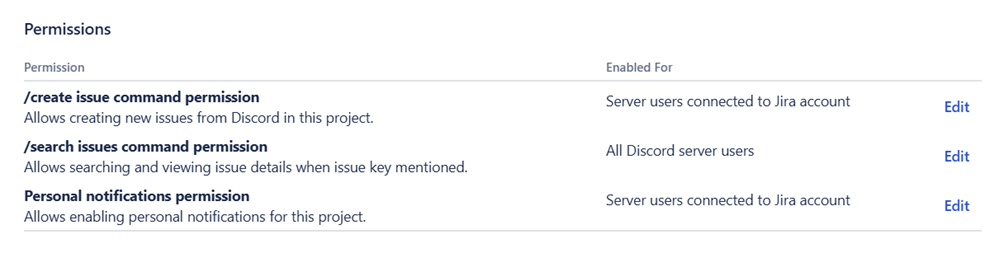
🚧 Heads up: For most critical permission issues, you'll see helpful warnings directly in Jira on the Discord integration settings page. Keep an eye out for those - they're handy!
🤖 Discord Bot Permissions
After you invite Jiri to your Discord server, the bots usually get all permissions automatically. Here's what each bot needs:
| Permission | Jiri | Jiri Support | Purpose |
|---|---|---|---|
| View Channels | ✓ | ✓ | See channels and respond |
| Send Messages | ✓ | ✓ | Deliver updates, notifications, and create forum posts |
| Send Messages in Threads | ✓ | ✓ | Post updates in threads |
| Create Public Threads | ✓ | ✓ | Create public ticket threads when needed |
| Create Private Threads | ✓ | ✓ | Create private ticket threads when needed |
| Embed Links | ✓ | ✓ | Rich visual previews |
| Attach Files | ✓ | ✓ | Send screenshots and files |
| Manage Webhooks | ✓ | ✓ | Trigger actions in Jira |
| Manage Threads | - | ✓ | Close, lock, and manage ticket threads |
| Read Message History | - | ✓ | Display messages in Jira, auto-close tickets |
🔍 How to Check Bot Permissions in Discord?
Not sure if your bots have everything they need? No problem!
- Open Discord, go to your Server Settings → Integrations → Jiri/Jiri Support.
- You'll see a neat section called Granted Permissions. Double-check if all above permissions are listed there.
🚨 Pro tip: Discord will usually let you know if something is wrong, but if things seem off, this is the best place to start your detective work.
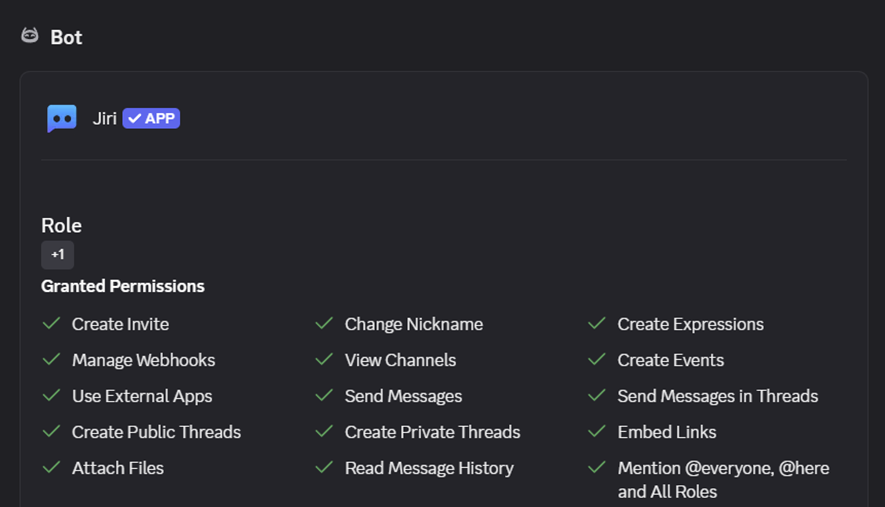
If anything is missing, head over to Server Settings → Roles → Jiri/Jiri Support and add any missing permissions.
🔐 Security & Peace of Mind
Relax - Jiri is friendly and safe to use! Permissions requested follow Atlassian and Discord security best practices. Jiri won't (and can't!) peek at your private channels or DMs unless explicitly invited.
Still, remember a simple security tip:
🔑 Security Tip: Ensure only trusted team members manage Discord integration settings. Control Jira permissions to naturally control Jiri's behavior.
🔍 Troubleshooting Permissions Issues
Jiri not responding or notifications gone quiet? Most likely, it's a permission hiccup:
- No messages appearing in Discord?
Double-check Discord permissions as described above. - Issue creation or personal notifications issues?
Verify the project-level permissions in Jira are configured correctly (and connected users have linked their Jira accounts). - Threads not closing or locking automatically?
Check if the Jiri Support bot has the Manage Threads permission in your Discord server.
Still stuck? We're here for you! Drop by the Discord for Jira Community - we love helping users and chatting with friendly folks like you! 😄