Link Your Account
Connect your Discord account to Jira to unlock all Discord for Jira features. This takes about 30 seconds!
Steps to Connect
- Head over to Jira and click your avatar in the top-right corner.
- Choose Discord from the dropdown menu.
- On the Personal Settings page, you'll see the Connect Your Discord Account section.
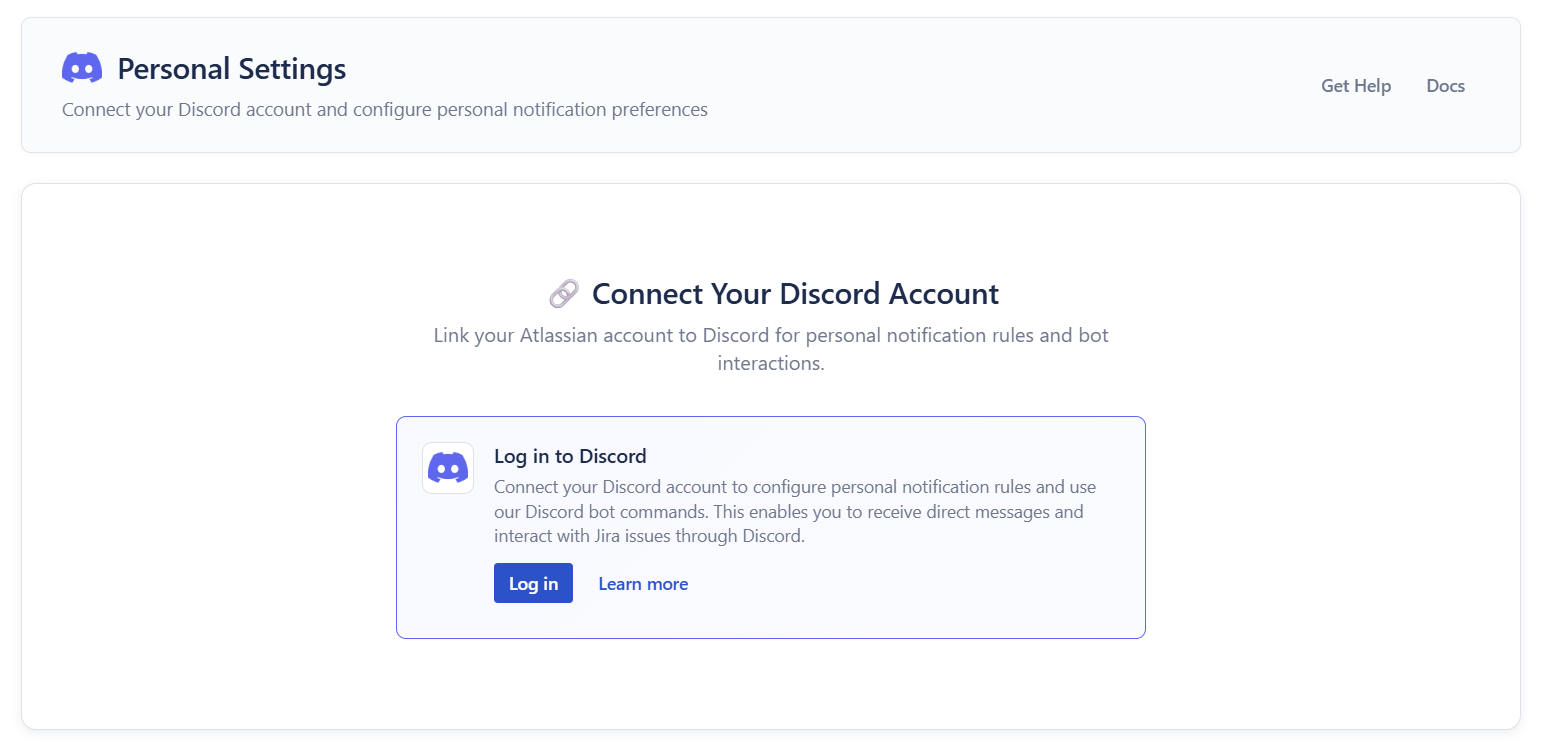
- Click the Log in button. Discord will pop up, asking for quick authorization.
- Click Authorize, and you're connected!
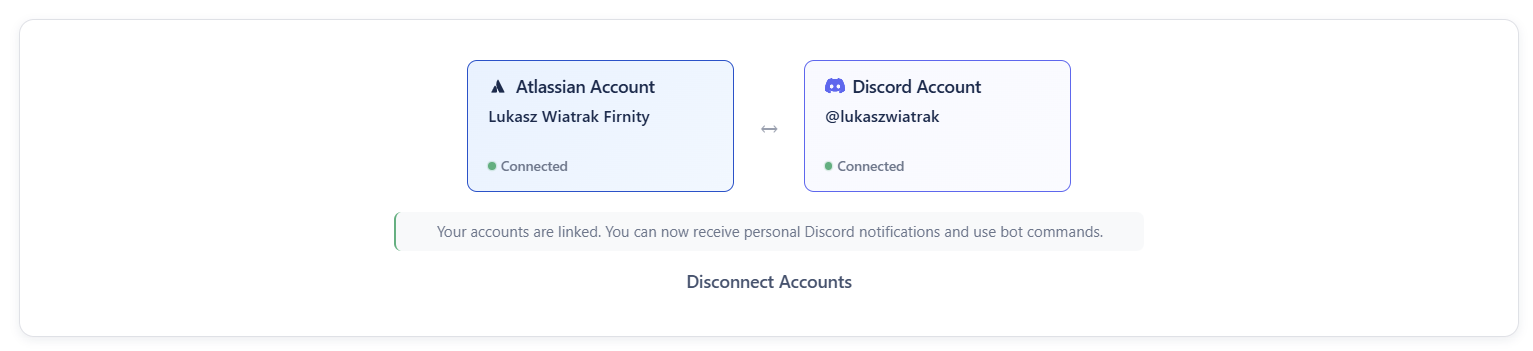
Once connected, you'll see both your Atlassian and Discord accounts displayed as "Connected":
💡 Quick fact: If you've previously connected a Discord server to your Jira site, then your Atlassian account might already be automatically connected to Discord!
🔄 Need to switch accounts? Click Disconnect Accounts to unlink your current Discord account and connect a different one.
What You Can Do Now
With your account connected, you can:
- Receive personal notifications via direct message when someone mentions you or updates issues you're watching
- Create Jira issues directly in Discord with the
/createcommand - Search Jira issues using the
/searchcommand
Some features require admin setup for your Discord server or Jira project. See the User Guide for all available features.
Need Help?
- Check the FAQ for common questions
- Join the Discord for Jira Community Server for support