
Create Tickets from Messages
Turn a Discord message into a Jira Service Management ticket in a couple of clicks. The app uses AI to classify the request type and prefill fields, so you can go from "huh?" to "ticket created" fast.
📋 Before You Start:
- At least one Service Desk ticket type configured (guide)
- Discord account connected if creating tickets from others' messages
- Service Desk Agent permissions for creating tickets from others' messages
Step 1: Right‑click the message
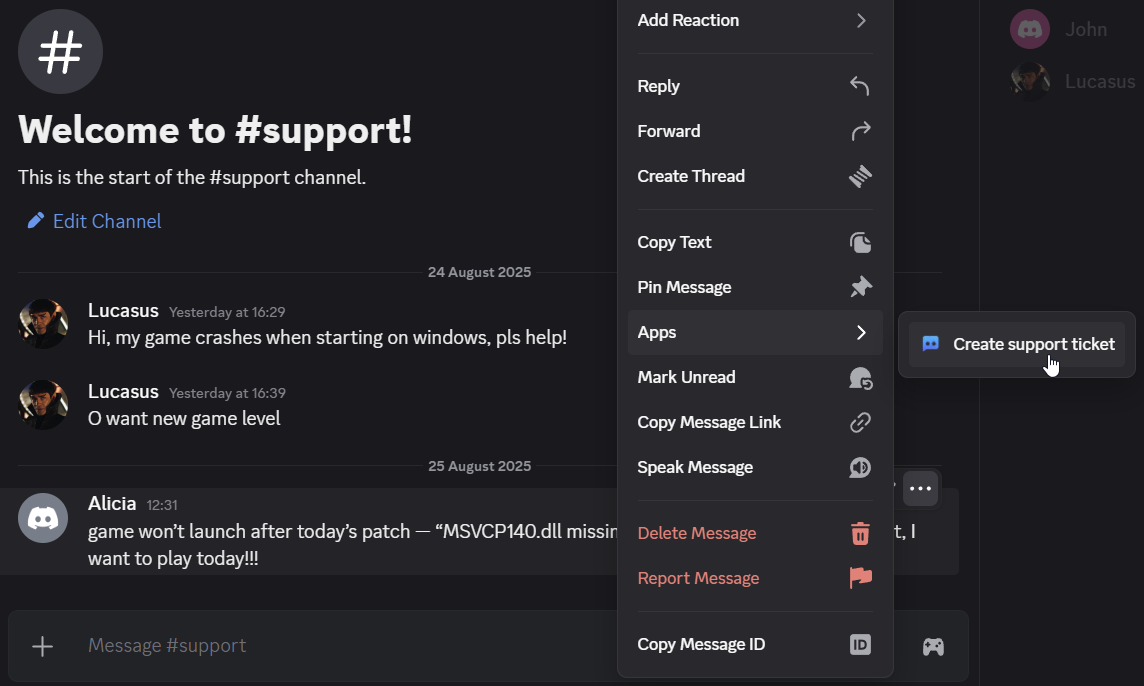
- In Discord, right‑click the message you want to ticket.
- Choose Create support ticket.
- The app drafts a ticket from the message, available forum title, supported attachments and nearby messages from the same person in that conversation.
💡 Quick tip: You can always start with your own messages. Creating from others' messages requires a connected Jira account and agent permissions.
🧵 Using a forum for bug reports? If your admin configured a Discord forum as the ticket destination and you create a ticket from a message inside that same forum post, the app reuses the existing forum post as the Jira ticket discussion.
Step 2: Review the suggestions
After analysis, you’ll see a preview card with suggested details:
- Request type: Auto‑classified from available project request types
- Summary & description: Extracted from the message
- Fields from your ticket type: Values are suggested based on your ticket type configuration (for example, Priority or Components)
- Select fields: Dropdowns with the valid options when you open Review & Edit
- Attachments: Names of images and files attached to the selected message. They stay included when you edit the fields or change the request type.
- Required values: Missing or unsupported required values are marked Required for you to complete.
Use the action that fits the draft:
- Create Ticket: Create immediately when the report supports all required values.
- Complete ticket / Review ticket: Open the editable form when details are missing, the report is ambiguous, context or files could not be analyzed, or the source has only a title and attachments.
- Review & Edit: Open a modal to adjust fields before creating.
- Change Request Type: Pick a different request type if classification isn’t right.
If the editable form takes longer to prepare, a private Open ticket form button lets you continue with the suggested values and original message context. Prepared forms expire after 15 minutes. If the form has expired, start again from the original message.
✍️ Pro tip: If the preview looks close but not perfect, use "Review & Edit" to tweak summary, description, or fields.
What AI can read
Select the message containing the files you want analyzed. Supported inputs are PNG, JPEG and WebP images, plus UTF-8 text files and logs (.txt, .log, .csv, .json, .md). Analysis accepts up to five files, 25 MiB total, with a 10 MiB limit per image and 256 KiB per text file. Long text, unreadable files and unsupported formats are skipped for analysis; review the draft and supply any missing details. Original attachments remain included for ticket creation.
The app can use up to eight messages including the selected message, from the same person in the same conversation, within five minutes before or after it. It does not search other channels or private conversations. Messages and files are captured once for that draft; changing the request type does not fetch a larger conversation. Preview sessions expire after 30 minutes.
Step 3: Create and attribute correctly
When you create the ticket:
- Images and files: The app copies the original message’s attachments to the ticket discussion and Jira issue. If the form includes an attachment field, you can add more files in Review & Edit. Linked website previews are not copied. AI can read supported images and text files. PDFs, audio, video and archives are not analyzed; the original files still transfer with the ticket.
- Reporter: The original message author
- Creator: The person who initiated ticket creation (shown separately)
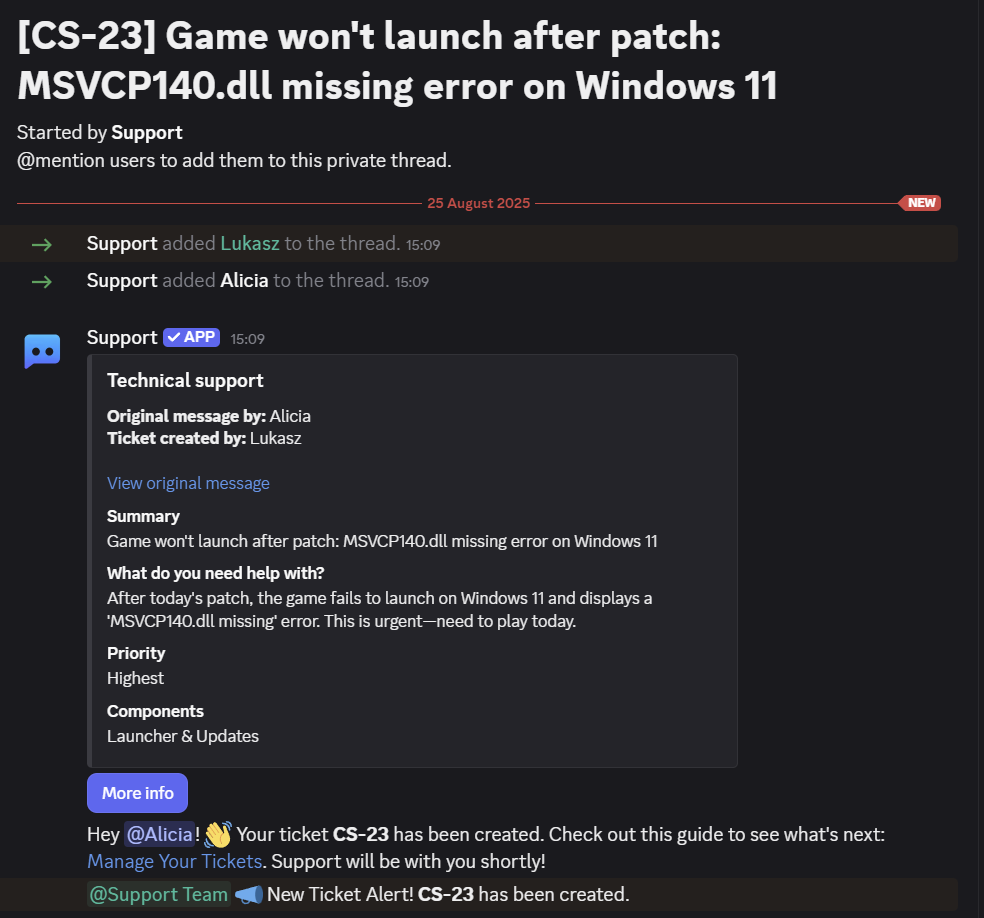
- Thread display: Shows "Original message by: [name]" and "Ticket created by: [name]", including a link back to the source message
- Thread membership: Both reporter and creator automatically join the ticket thread
- Forum reuse: When the configured destination is a forum and your source message is already inside that forum post, the app keeps using that same post instead of creating a second discussion
Permissions model
- Create from your own messages: Anyone can do it.
- Create from others’ messages: Requires connected Jira account and Service Desk Agent permissions in the target project.
- Project filtering: When creating from others’ messages, only request types from projects where you have agent permissions are shown.
Fix agent access
If Discord says your linked Jira account needs agent access, ask a Jira or service project admin to:
- Open the service project and select Invite team, or open Project settings / Space settings and select Access or People and access.
- Add your linked Jira account as an agent or to the Service Desk Team role.
- Confirm that the account has Jira Service Management product access. An organization administrator or Jira Service Management user access administrator may need to grant it.
Then try Create support ticket again in Discord. Jira must confirm your linked account's effective agent permission; role membership alone does not replace that check.
For Jira’s current instructions, see Add service project agents, manage project role membership, or manage access in team-managed service projects.
Troubleshooting / FAQ
- "Create support ticket" option missing? Ensure the bot is present and at least one request type is configured. See Set up JSM.
- “This ticket wasn’t created. Please ask a server admin for help.” Ask a server administrator to check Ticket Automation in Jira and follow Restore Ticket Automation. You do not need to diagnose Jira or change your account yourself.
- Discord specifically says you need agent access? Follow Fix agent access.
- A file did not transfer? Read the private attachment warning and check which files reached the ticket discussion and Jira issue. Upload missing files manually after checking the destination’s attachment permissions and size limits. Do not create a duplicate ticket. A single Discord ticket message supports up to 10 files.
- The original message could not be read? Start again from an accessible message, or use
/ticketand upload the files in its form. - Wrong request type suggested? Use Change Request Type in the preview.
- Fields look off? Choose Review & Edit to adjust before creating.
- Why was no new discussion created? Forum destinations reuse the current forum post when you create a ticket from a message inside that post.
- Why was ticket creation blocked for this forum post? A forum post can only be linked to one Jira issue or ticket at a time.
Next Steps
- Create Tickets — Other ways to open tickets via buttons or slash commands.
- Auto‑populate ticket fields — Enrich Jira issues with Discord context.
- Work with tickets — Reply, triage, and close tickets from Discord.