
Set Up Jira Service Management
📋 Before You Start:
- An Atlassian account (you probably have one already)
- Admin rights for Jira Cloud (usually automatic if you're the one setting things up)
Ready to start managing support tickets created from Discord? You'll need Jira Service Management (JSM) set up first. Don't worry - it's easier than assembling IKEA furniture (promise!). Let's dive in.
Note: Jira Service Management is a powerful product that might feel overwhelming at first, but it's actually quite simple to configure.
🎯 Step 1: Activate Jira Service Management (Free!)
Don't have JSM activated yet? No problem - it's quick and free:
- Head over to Jira Service Management activation page.
- Click Next (yep, it's free - no worries!).
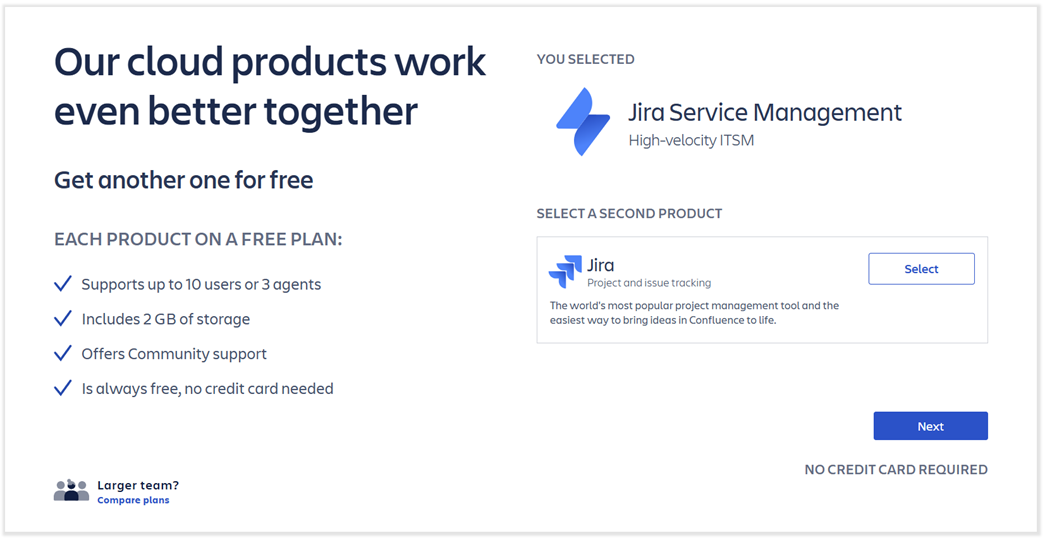
- Log in to your Atlassian account (if not already logged in).
- Select your existing Jira site URL from the dropdown.
- Click Agree and Start now.
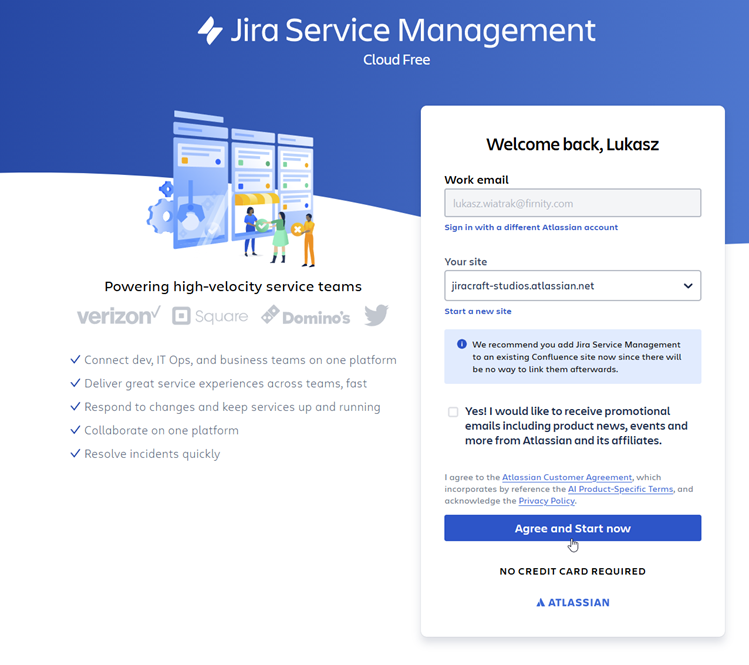
🎉 Congrats, Jira Service Management is activated!
📝 Step 2: Create Your First JSM Project
If you've just activated JSM:
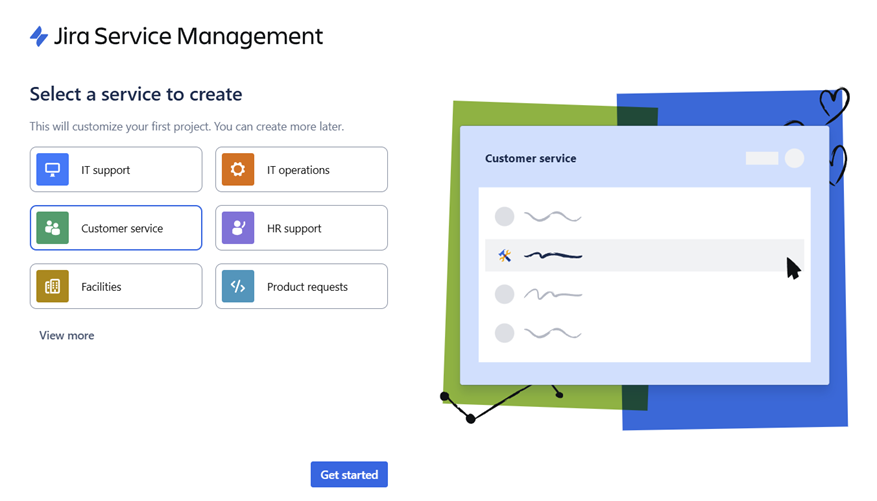
- You'll immediately see a page asking to Select a service to create.
- Choose the Customer service template - it usually fits perfectly.
- Click Get started, give your project a catchy name, and voilà!
If JSM was already activated earlier:
- Log in to Jira and click on Projects → Create project.
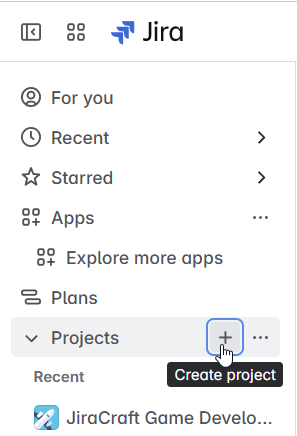
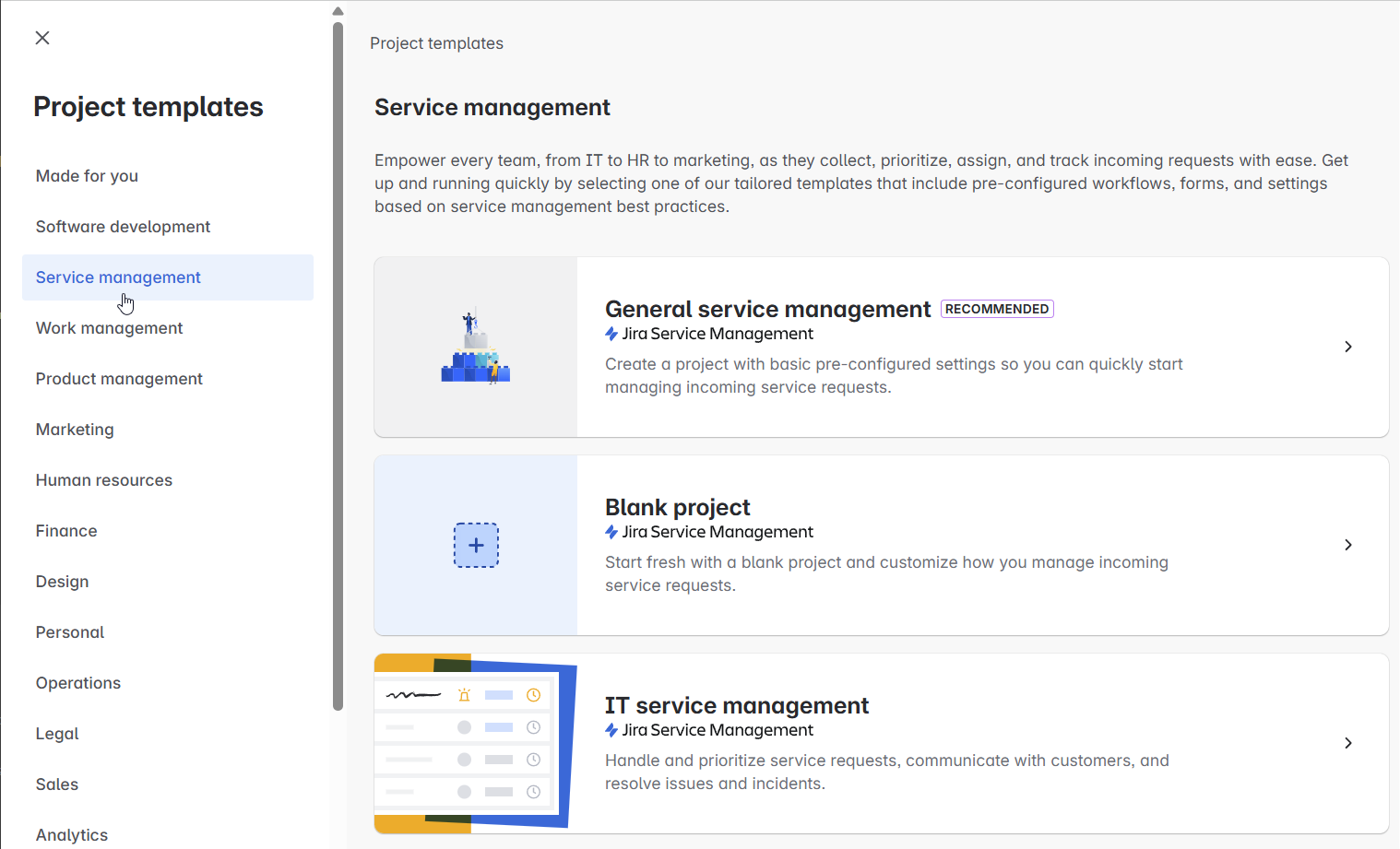
- Choose Service management from the sidebar.
- Select the General service management or Customer service management template.
- Click Use template, name your project, and you're good to go!
Step 3: Quick Check of Project Settings 🕵️♂️
Quick tip: Peek at your project settings to make sure things look good:
- Click the three dots (…) next to your project's name and select Project settings.
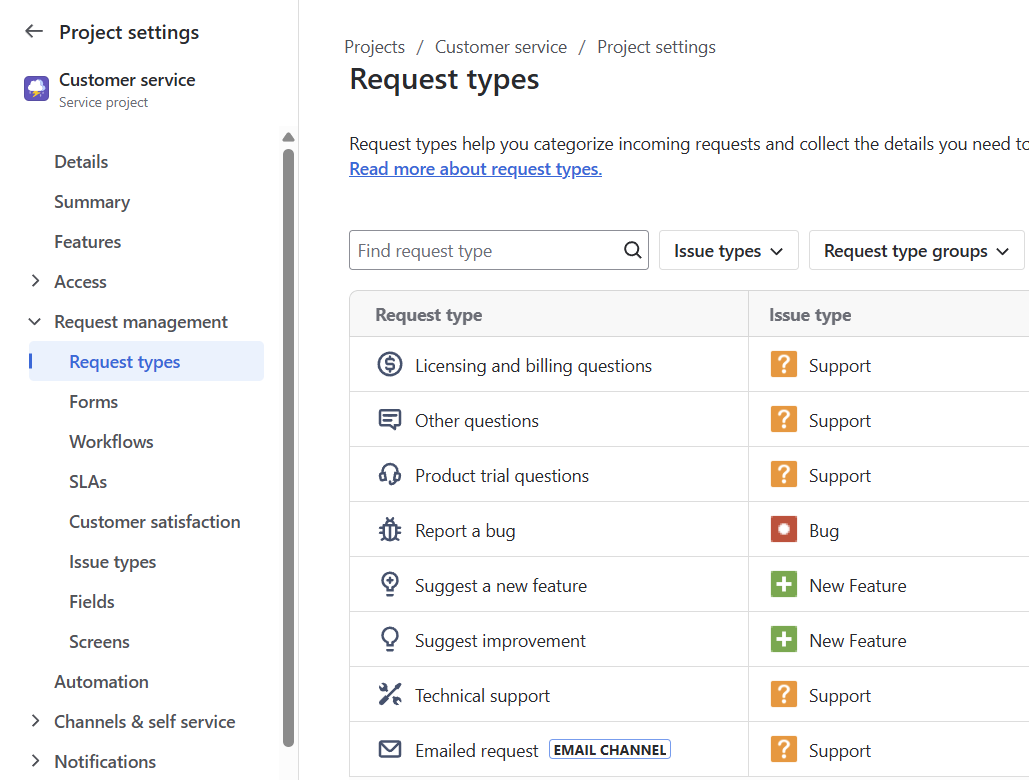
- Review the default request types under Request management → Request types. Customize now or tweak later - up to you!
You're Ready for Discord Integration!
Your Jira Service Management project is live and ready for Discord tickets. 🎯 Next stop:
Questions? Hop into our friendly Discord for Jira Community - we're always here to help!
Quick Troubleshooting & FAQs 🤔
Can't activate JSM?
- Refresh and retry - it might just need a minute.
Can't create a project?
- Verify your Jira admin permissions.
- Still stuck? Join our community - we've got your back!
Happy ticketing! 🎫