
Create Tickets
Need help from your friendly support team? No worries - now you can raise tickets right from Discord. No Jira hunting required! 🥳
Here's how it works (super easy, promise):
📌 Option 1: Use the Ticket Panel Buttons (Easiest!)
If your server admins set up a ticket panel (fancy word for "buttons you click"), you're in luck! Look for it in your Discord ticket channel or in a dedicated forum post:
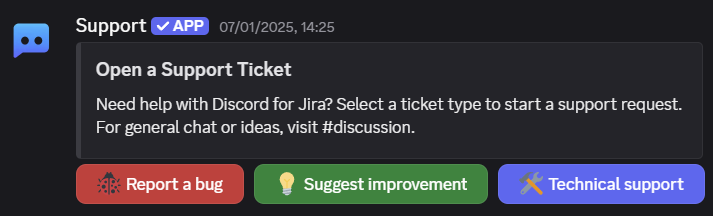
Click the button that best matches your issue - like Report a Bug if you found something fishy 🐟.
Discord will open a quick form:
- Type in the details requested (summary, description, your cat's name... okay, maybe not the last one).
- Select fields show dropdowns with the valid options.
- Hit Submit!
Boom! Your ticket is created, and you get a Discord discussion space to chat directly with support. 🎉
💬 Option 2: Using the /ticket Slash Command (Also easy!)
Prefer typing? We've got slash commands for you:
- In the support channel (like
#support), type/ticketand hit Enter.
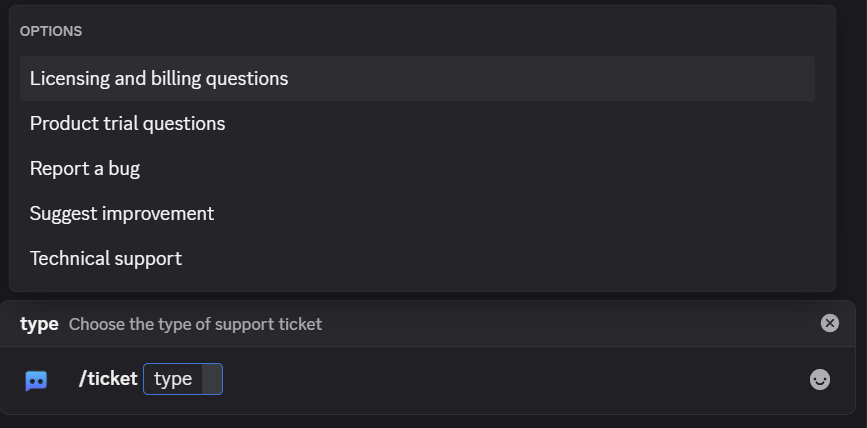
-
Choose the request type from the dropdown, like Technical Support or Report a Bug.
-
Fill out the quick form that pops up (just like above), and hit Submit.
You're done! A ticket is created and a Discord discussion opens.
✅ After Submitting Your Ticket
Here's what happens next:
- You'll immediately get a confirmation message with a ticket ID, like
SUPPORT-123. Fancy, huh?
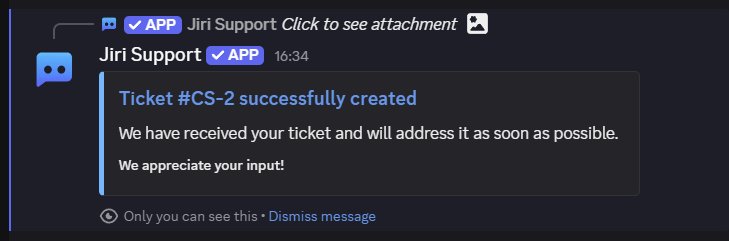
- Discord creates a thread or forum post for the discussion, depending on how your admins configured the destination.
- The thread starts with a ticket details card showing your submitted fields and any uploaded attachments.
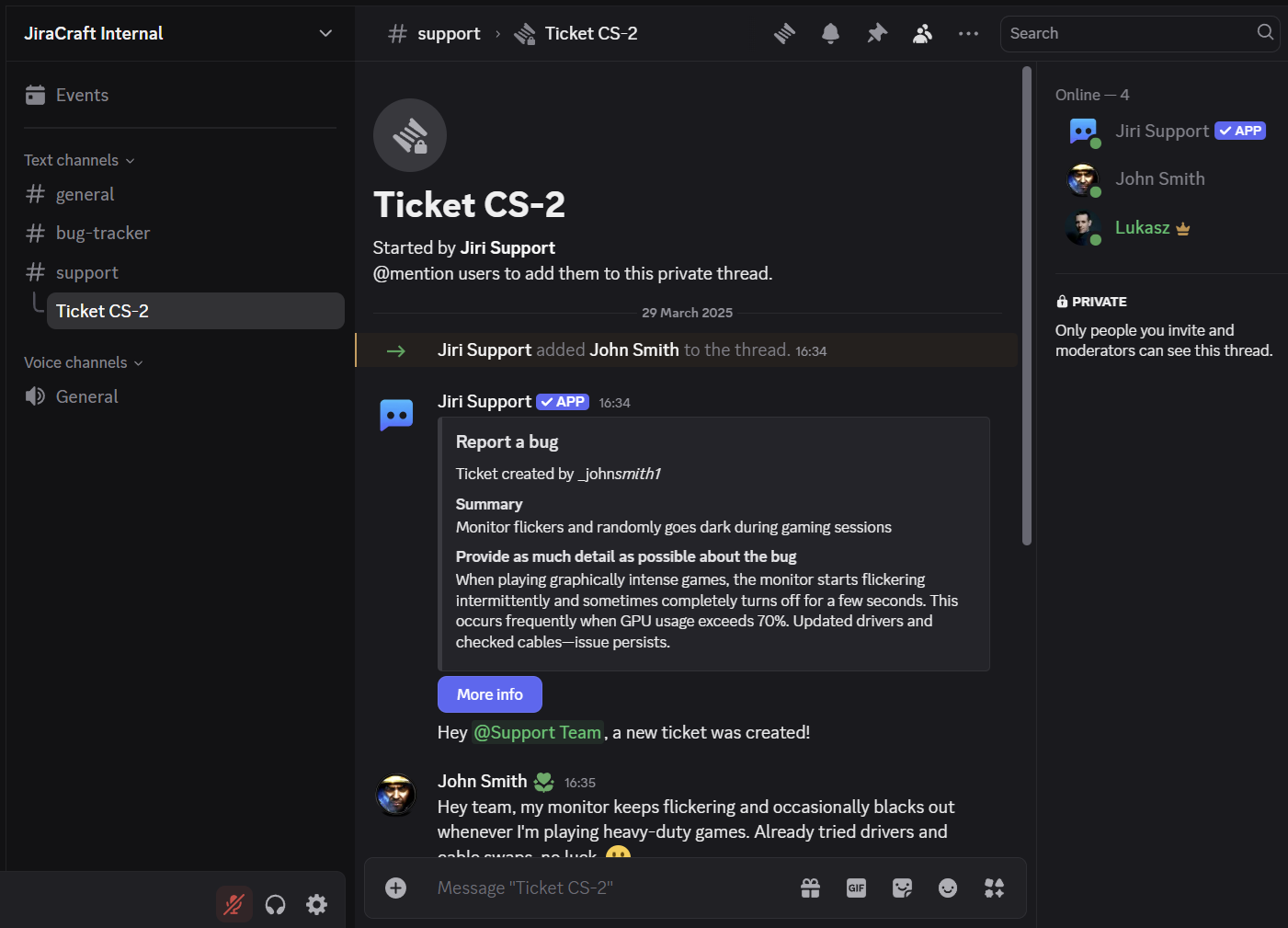
- Keep an eye on the thread for updates or additional questions from support - no need to refresh Jira endlessly.
If your confirmation says Your support ticket has been created and links to the ticket, your submission is saved even if no Discord discussion appears. You do not need to submit it again. Access to the linked ticket depends on your support team's settings.
🔒 Privacy, Please!
Ticket privacy depends on how your admins configured the destination:
- Private thread destinations are only visible to you, the support team, and the bot.
- Forum destinations are visible to people who can access that forum.
🙋 Quick Troubleshooting
-
No ticket panel buttons?
Ask your server admins - maybe they forgot to set it up (it happens!). -
Ticket type unavailable?
If you see "This ticket type is no longer available," ask your admin to update the ticket panel or /ticket settings. -
Slash command not working?
Double-check you're in the right channel (#supportis usually a safe bet).
Still stuck? Swing by our Discord for Jira Community - we love solving puzzles!
Next Steps
- Create tickets from messages — Turn any Discord message into a ticket with AI preview.
Happy ticketing! 🎟️