Link Your Account
Connect your Discord account to Jira to unlock all Discord for Jira features. This takes about 30 seconds!
Steps to Connect
- Head over to Jira and click your avatar in the top-right corner.
- Choose Discord from the dropdown menu.
- On the Personal Settings page, you'll see the Connect Your Discord Account section.
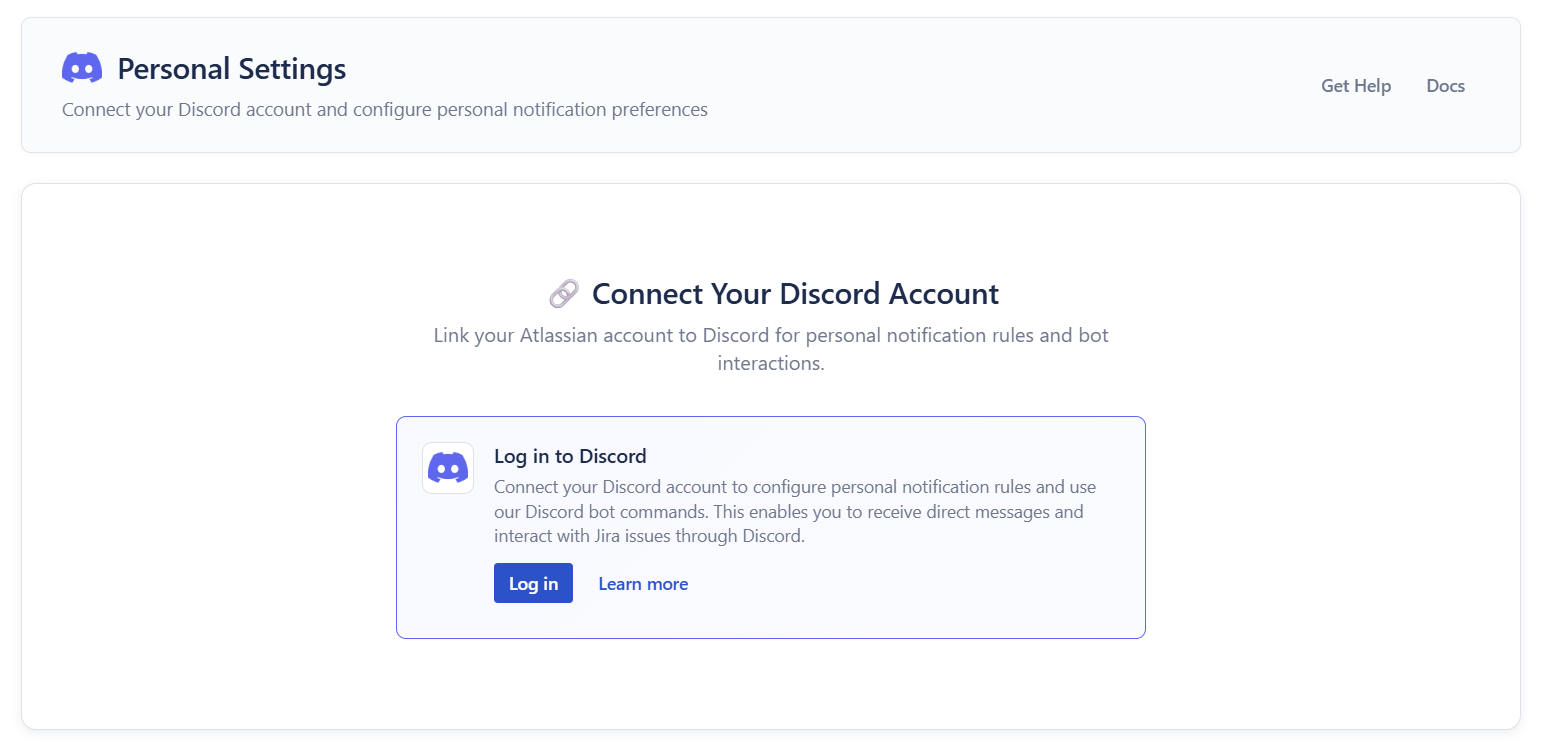
- Click the Log in button. Discord will pop up, asking for quick authorization.
- Click Authorize, and you're connected!
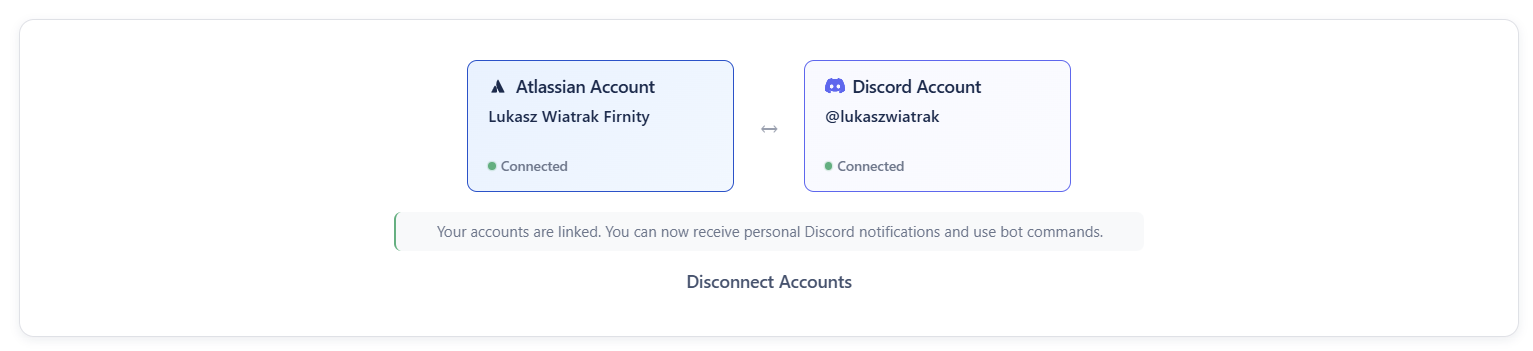
Once connected, you'll see both your Atlassian and Discord accounts displayed as "Connected":
💡 Quick fact: Authorizing a Discord server can automatically connect your accounts only when that Discord account is not already connected to another Jira account on the site.
🔄 Need to switch accounts? Authorize the Discord account you want from Personal Settings. Your current Jira account keeps its personal notification rules. If that Discord account was connected to another Jira account on the same site, the connection moves to your current Jira account. Personal notification rules from the other Jira account are removed and do not move with it.
What You Can Do Now
With your account connected, you can:
- Receive personal notifications via direct message when someone mentions you or updates issues you're watching
- Create Jira issues directly in Discord with the
/createcommand - Search Jira issues using the
/searchcommand
Some features require admin setup for your Discord server or Jira project. See the User Guide for all available features.
Need Help?
- Check the FAQ for common questions
- Join the Discord for Jira Community Server for support