
Configure Ticket Integration
Want your Discord community to create Service Desk tickets without leaving their favorite chat app? Perfect! Let's get ticket automation set up so your team can stay in the flow while support stays organized.
📋 Before You Start:
- A Jira Service Management project ready (setup guide)
- A licensed Jira Service Management site. Ticket Automation checks the license before offering setup or enabling a project.
- Jira Admin rights to manage apps and integrations
- Permissions to invite bots to your Discord server
- A Discord text channel or forum ready for ticket discussions (like
#support,#tickets, or a bug-report forum)
🤖 Step 1: Connect Jiri Support Bot
First, let's connect the specialized Jiri Support Bot to your Discord server - this bot handles all ticket automation.
Adding or reconnecting Jiri Support requires a Jira administrator, not only a project administrator. If project settings show Jira administrator required, ask a Jira administrator to connect the bot. Your normal project enable, configuration and disable controls keep their existing permissions. If an available Add Bot or Add Bot Again action fails, its error is shown beside the action so you can share the full explanation with your administrator.
If Ticket Automation says Jira Service Management is not licensed on this site, ask your billing administrator to check the site's JSM subscription in Atlassian Billing. If it says Could not check the Jira Service Management license, select Check again and use the visible error details if you need support. Follow Restore Ticket Automation for the exact recovery steps. Existing settings are preserved, and disabling remains available while setup and saves are blocked.
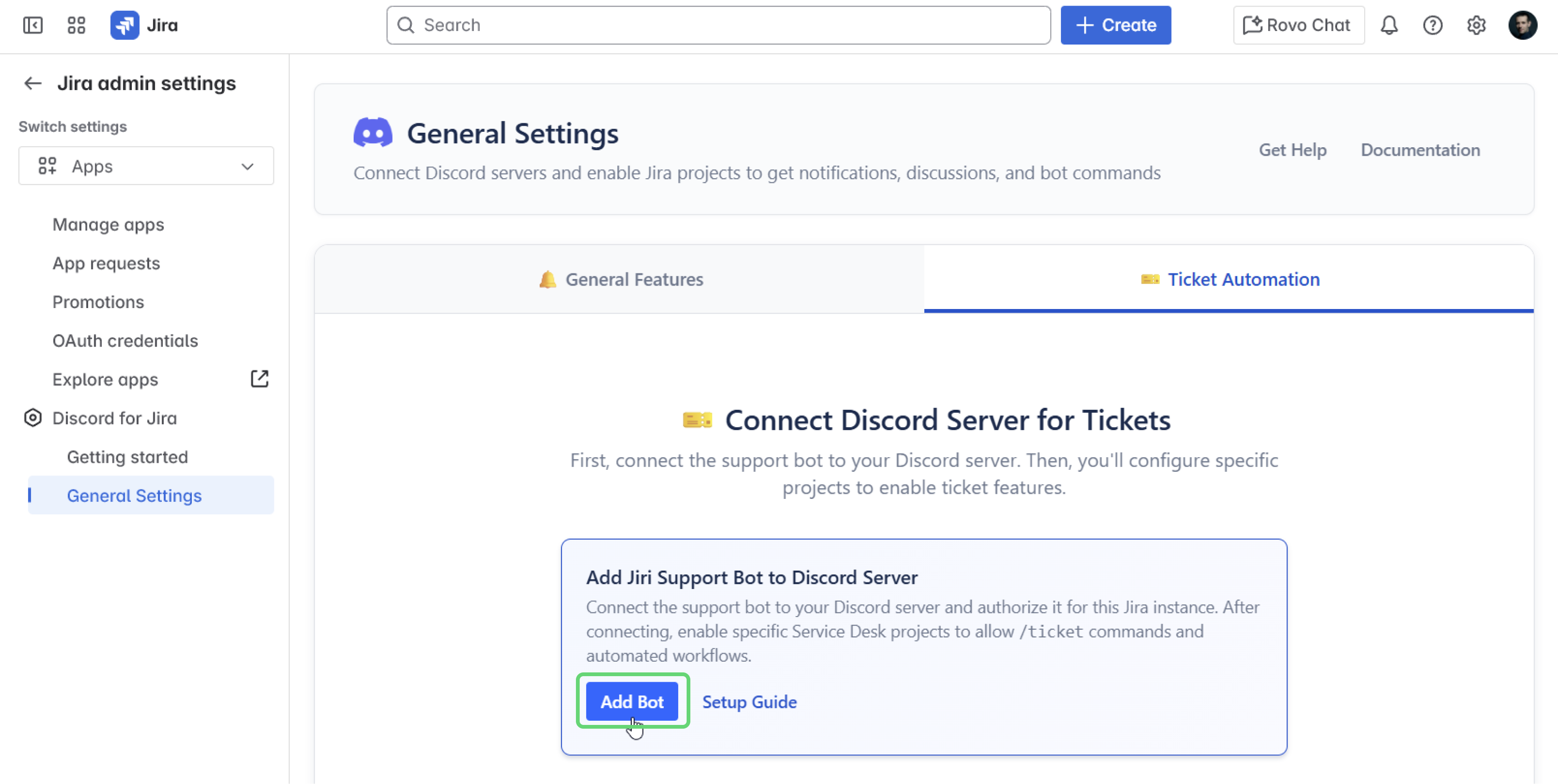
- Navigate to Ticket Automation Settings:
- Click the Settings gear icon in your Jira header
- Select Apps from the menu
- Under Discord for Jira, click General Settings
- Switch to the Tickets tab
- Add Jiri Support Bot:
- Click Add Bot to start connecting the support bot
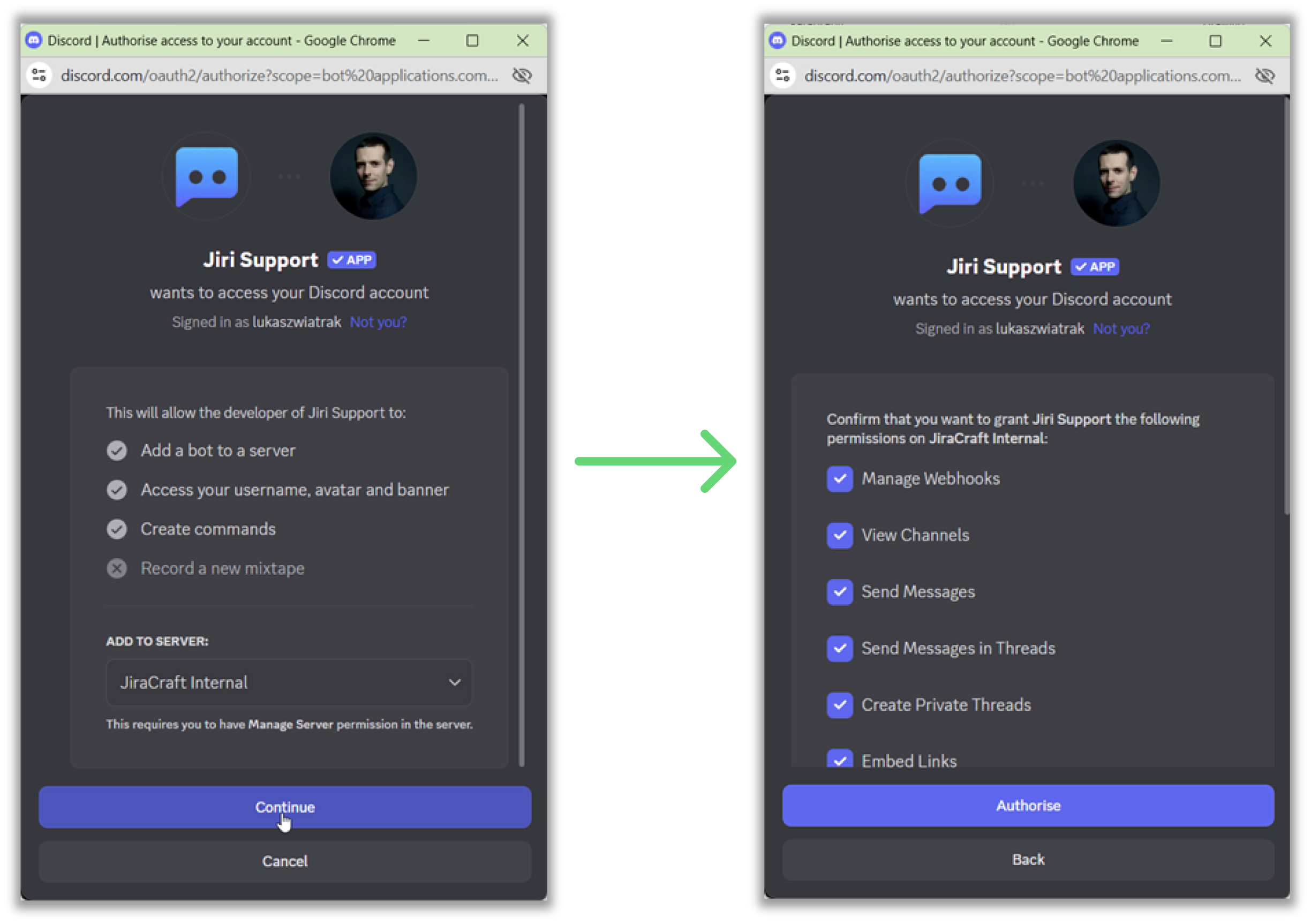
- You'll be redirected to Discord to authorize the Jiri Support Bot
- Select your Discord server and click Authorize
💡 Quick tip: The Jiri Support Bot is separate from the main Jiri bot - this keeps ticket management organized and lets you customize permissions separately!
- Confirm Connection:
- Return to Jira - your Discord server should now appear in the connected servers list
- Success! Your server is ready for ticket automation
✅ Step 2: Enable Your Service Desk Project
Now let's enable a specific Service Desk project to use ticket automation.
- Enable Project for Tickets:
- In General Settings → Tickets, scroll down to Jira Service Desk Projects
- Find your Service Desk project and click Enable
- Select which Discord server to enable for this project
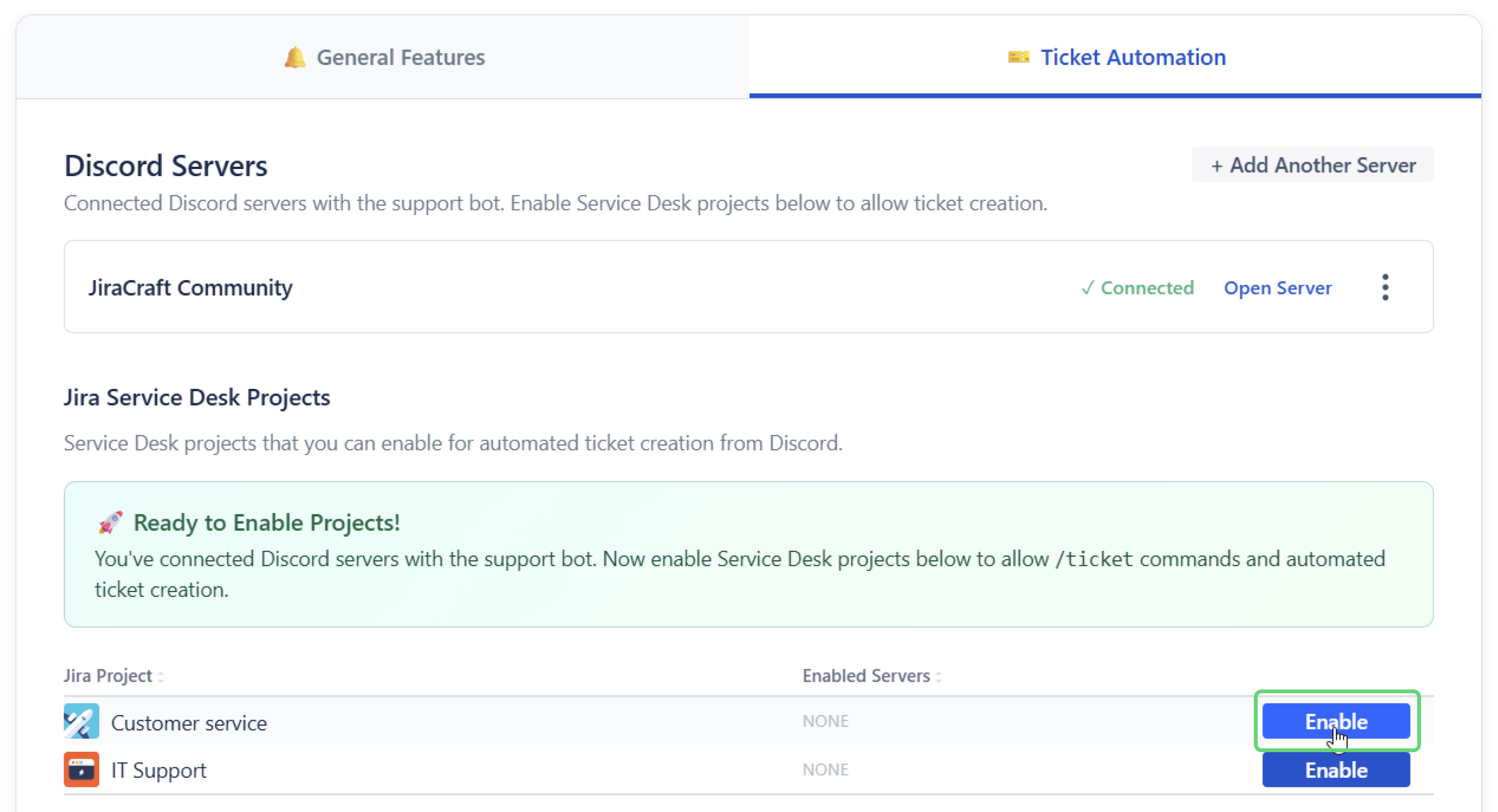
🎯 Note: Only Jira Service Management projects appear here - regular Jira projects can't use ticket automation.
⚙️ Step 3: Configure Your Project Settings
Time to configure the specific settings for your Service Desk project.
- Navigate to Project Settings:
- In General Settings → Ticket Automation, find your enabled project
- Click the handy Configure button next to your project
- This takes you directly to the project's ticket automation settings

💡 Pro tip: You can also navigate manually via Project Settings → Apps → Discord → Ticket Automation, but the Configure button is much faster!
-
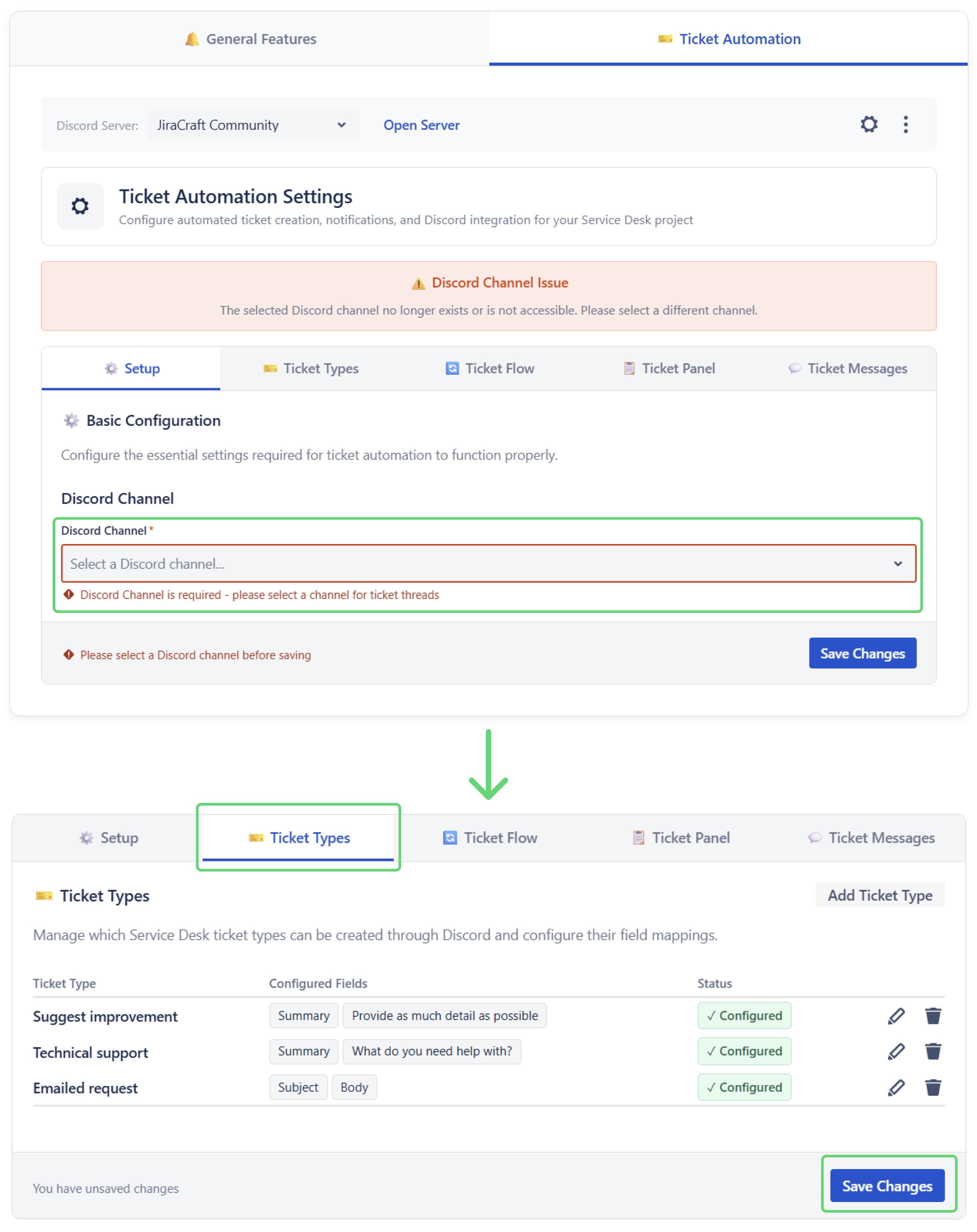
Set Your Discord Destination:
- Select the Discord text channel or forum where ticket discussions should happen
- Text channels create ticket threads inside the selected channel
- Forums use forum posts as the ticket discussion space
- Forum posts are visible to anyone who can access that forum, so private thread settings only apply to text channels
- Visible destinations that lack a required permission remain listed with Needs access. Select one to see the exact missing permissions, fix them in Discord, then select Recheck permissions. The required permissions update when you choose public threads, private threads, or a forum.
- A destination Jiri Support cannot view may be omitted from the list. If it was already saved, the picker keeps it as Unavailable destination so you can restore View Channel access or choose another destination.
- If you turn off Create Discord Threads for Tickets for a text channel, the destination only needs View Channel. A forum still creates a forum post and keeps its discussion permissions.
-
Review Ticket Types:
- Your request types are automatically imported from Jira Service Management
- Default field mappings are pre-configured - you can customize these later
-
Save Your Settings:
- Click Save Changes to activate ticket automation
Test Your Setup
Let's make sure everything works:
-
Try Creating a Ticket:
- Go to your Discord server
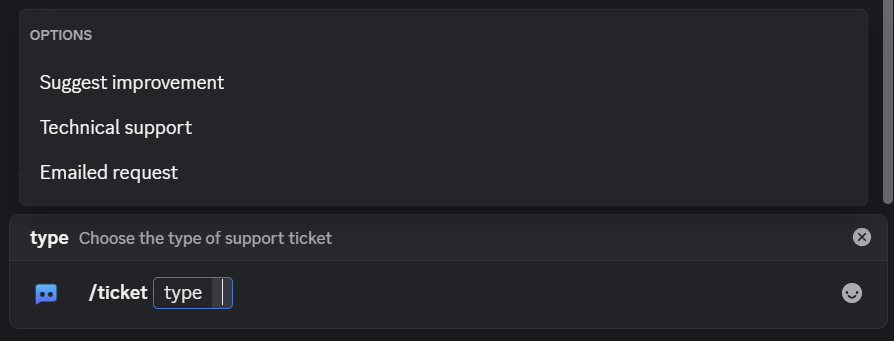
- Type
/ticketand select a ticket type - Fill out the form and submit
-
Check the Magic:
- A new ticket should appear in your Jira Service Management project
- A ticket discussion should be created in Discord: a thread in a text channel or a forum post in a forum
- Messages in that discussion sync with Jira comments
Working? Fantastic! 🎉 Not working? Check the troubleshooting section below.
Quick Troubleshooting
🤔 /ticket command not appearing?
Make sure the Jiri Support Bot has proper permissions and the project is enabled in General Settings.
🤔 Ticket discussions not creating properly? Verify the Jiri Support Bot has "Manage Threads" permission in your Discord server. Public ticket threads also need "Create Public Threads". Forum destinations need "Send Messages" so the bot can create forum posts, and forums do not support private ticket threads.
🤔 Sending the ticket panel to a forum? The app creates a dedicated forum post that contains the panel instead of posting a normal channel message.
Still stuck? Join our Discord for Jira Community - we've got your back!
What's Next?
Your ticket automation is live! Now you can:
- Configure Ticket Types - Customize fields and forms
- Set Up Ticket Panel - Add buttons for easy ticket creation
- Configure Ticket Flow - Automate ticket lifecycle
- Customize Notifications - Personalize ticket messages
Ready to help your community get the support they need! 🎫