Receive DM Notifications
Want Jira updates sliding right into your Discord DMs? You got it! 🎯 Personal notifications let you stay on top of mentions, issue updates, and other important events without digging through busy channels.
📬 What exactly are Personal Notifications?
When enabled, you'll receive direct messages from Jiri bot whenever:
- Someone mentions you directly in a Jira issue or comment.
- An issue you're watching gets updated (status changes, comments added - you name it).
💡 Quick note: Jiri is considerate - it won't spam you with notifications for your own actions. You're welcome.
🔗 Step 1: Connect Your Discord Account
Comment mention history is kept for 180 days since its last update. If you edit an older comment after that history has been cleaned up, people already mentioned in it may receive another mention alert.
Make sure your Discord account is connected to Jira first. Not connected yet? No worries - it's quick and easy! Follow the steps in the User Guide Introduction to get connected.
⚙️ Step 2: Set Up Your Personal Notifications
Let's customize your notifications:
- In Jira, click your avatar and select Discord.
- You'll see the Configure Personal Notifications section with options to set up personal Discord DMs.
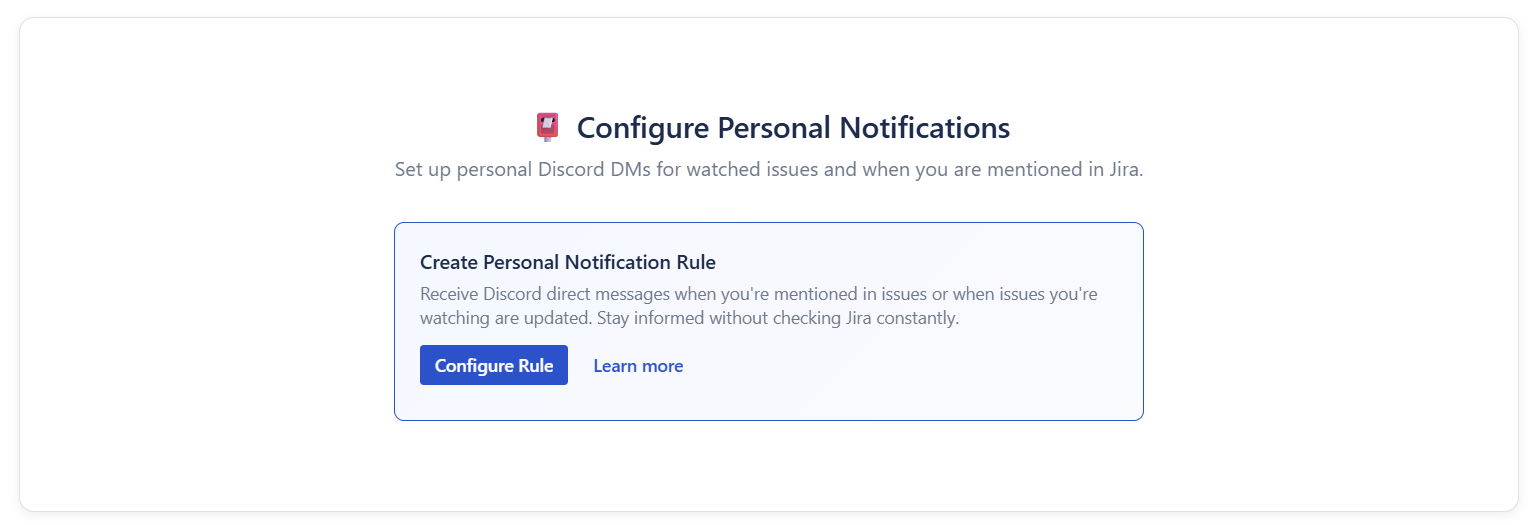
- Click Configure Rule to create your first notification rule.
- Fill out the notification rule form:
- Rule name: Give it a memorable name like "My Jira DMs"
- Select project: Choose which Jira project you want notifications from (only projects where admins have enabled personal notifications will be available)
- Notification Preferences: Check the boxes for alerts you want:
- ✅ You are mentioned in an issue or a comment (when you're @mentioned)
- ✅ Issue you are watching is updated (updates on issues you're watching, except your own changes)
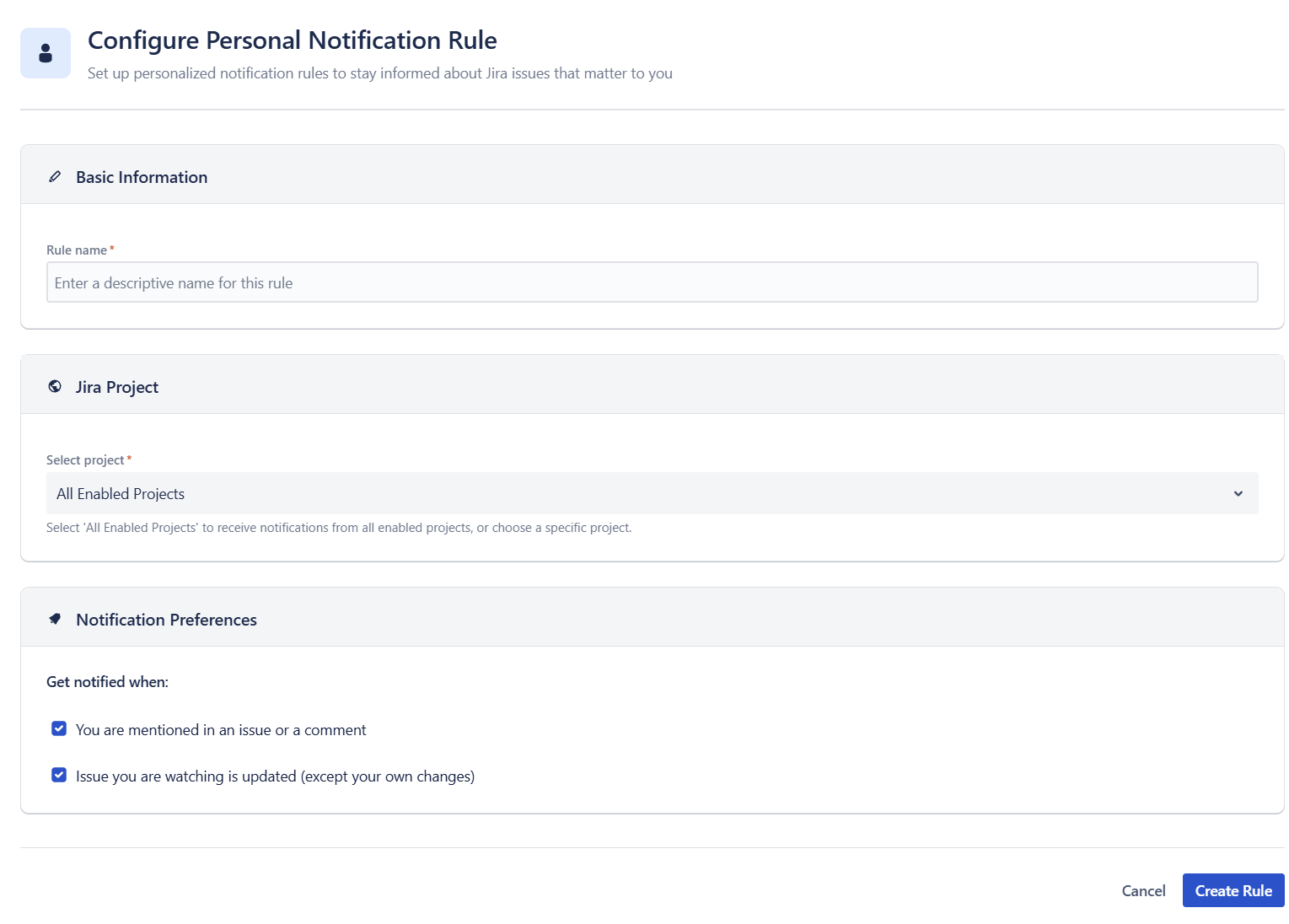
- Click Create Rule. Boom - you're done!
⚠️ Important: Discord requires you to be a member of at least one Discord server where the Jiri bot is installed to receive personal notifications.
🚧 If direct messages become unavailable
If Jiri cannot deliver a DM, or your Discord account no longer shares a server with Jiri, your personal notification rules are paused. The Personal Settings page keeps the rules visible and shows the reason.
Your rules stay saved and can still be edited or deleted. After fixing the Discord access problem, select Try again. Jiri sends a short test DM. If it arrives, your rules resume.
When Jira provides your email address to the app, Discord for Jira also sends one warning explaining the problem and repair. There are no daily reminders for the same unresolved problem. A successful test DM or notification proves recovery; a later failure can receive a new warning. You can unsubscribe from configuration warning emails without changing onboarding email preferences.
Troubleshooting checklist
- Make sure you still share at least one Discord server with Jiri for that Jira site.
- In Discord, open User Settings → Content & Social and make sure Direct messages is enabled if you want DMs from shared servers.
- If you manage DM access per server, open a shared server with Jiri and check that server's Privacy Settings too.
- Select Try again in Personal Settings.
- If the check still fails, disconnect and reconnect your Discord account from Personal Settings.
The most common reasons are:
- You no longer share a Discord server with Jiri for that Jira site.
- Direct messages are disabled globally in Discord.
- Direct messages are disabled for the shared server with Jiri.
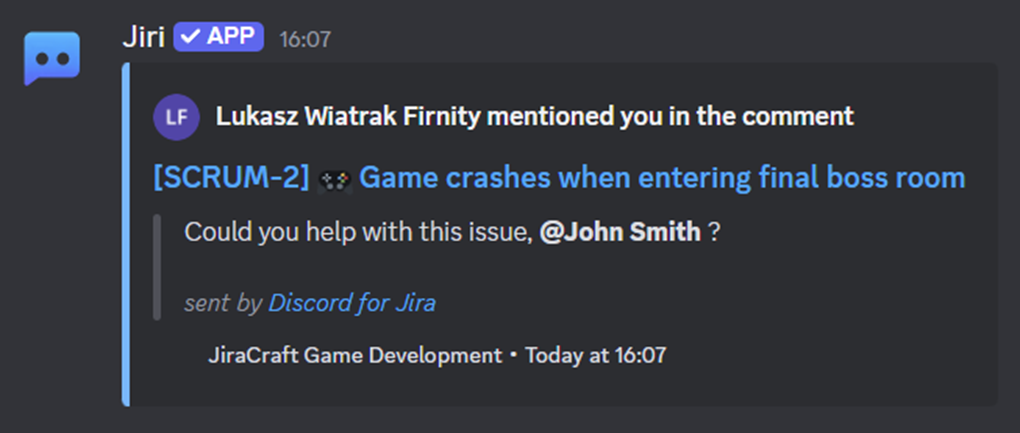
🎉 What Does a Notification Look Like?
Here's a peek at what to expect:
🔕 Need a Break? Easy to Manage!
Too many alerts? No worries:
- Go back to your personal Discord settings in Jira.
- Click Edit or Delete next to your notification configuration to fine-tune or remove it.
❓ Got Questions?
Still unsure or want to chat? Swing by the Discord for Jira Community - we love hanging out and helping users just like you!