
Custom Ticket Messages
📋 Before You Start:
- You have configured a ticket system in your Jira Service Management project
- You have admin permissions in both Jira and Discord
Want your Discord ticket notifications to sound exactly right? You're in the right place! This guide explains how to fine-tune the messages Jiri sends during a ticket's lifecycle.
Step 1: Access notification settings
- Navigate to your Jira project.
- Click Project settings (usually under the project name or in the sidebar).
- Under Apps, select Discord.
- Find the specific Ticket Configuration you want to modify and click its Edit button.
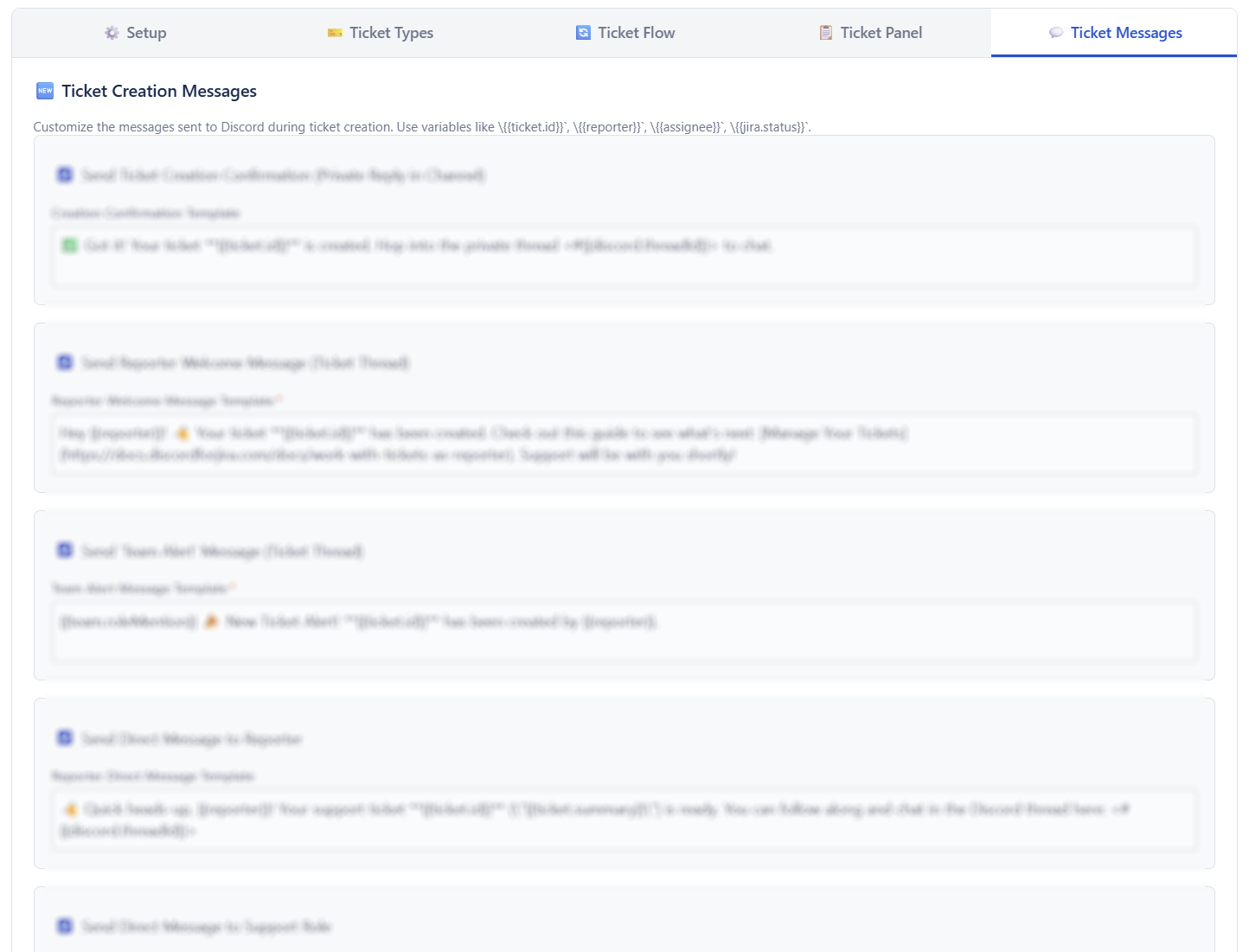
- Click on the Ticket Messages tab.
You should now see a list of all the notification types you can customize.
💡 Quick tip: Save your changes after editing each section to avoid losing your work.
Step 2: Understand template controls
For almost every notification type, you'll find two main controls:
- Enable/Disable Checkbox: A simple checkbox to turn that specific notification ON or OFF. Uncheck it if you don't need that particular message.
- Template Text Area: This is where you can customize the exact text of the message sent. Use plain text, Discord markdown, and special variables.

Step 3: Customize creation notifications
These notifications trigger when a user first creates a ticket:
- Send Ticket Creation Confirmation (Private Reply in Channel)
- Who sees it? The user who created the ticket.
- Where? As a private (ephemeral) message only they see in the channel where they clicked the button/used the command.
- Purpose: Confirms the ticket was created and tells them where to find the thread.
- Template:
Creation Confirmation (Private Reply)

- Send Reporter Welcome Message (Ticket Discussion)
- Who sees it? Everyone in the new ticket discussion.
- Where? Posted in the newly created ticket discussion, whether that is a private thread, public thread, or forum post.
- Purpose: Welcomes the reporter to the discussion and sets expectations.
- Template:
Reporter Welcome Message Template

-
Send 'Team Alert' Message (Ticket Discussion)
- Who sees it? Everyone in the new ticket discussion (often mentions a support role).
- Where? Posted in the newly created ticket discussion, whether that is a private thread, public thread, or forum post.
- Purpose: Alerts the support team that a new ticket needs attention. Can mention a specific Discord role if configured in the Request Type settings.
- Template:
Team Alert Message Template
🚨 Heads up: This notification is essential for adding your support team role to the ticket discussion. If disabled, support roles won't be added to tickets automatically.
💡 Forum tip: Forum destinations use public forum posts. Review any template text that promises a private thread.

- Send Direct Message to Reporter (Ticket Creation)
- Who sees it? The user who created the ticket.
- Where? As a Direct Message (DM) to the reporter.
- Purpose: (Optional) Informs the reporter via DM that their ticket is created and links them to the discussion.
- Template:
Reporter Direct Message Template

-
Send Direct Message to Support Role (Ticket Creation)
- Who sees it? All members of the Discord role configured for the specific Request Type.
- Where? As a Direct Message (DM) to each role member.
- Purpose: (Optional) Directly notifies specific support members via DM about a new ticket, potentially including a Jira link for quick access.
- Template:
Support Role Direct Message Template
💡 Quick tip: To comply with Discord's notification limits, only the first 10 members of the support role will receive DMs.

Step 4: Customize update notifications
These notifications keep everyone informed as the ticket progresses. If you want to control whether assignees are added to the Discord discussion automatically, use the Ticket Flow settings instead.
- Send 'Ticket Assignment' Message (Ticket Discussion)
- Who sees it? Everyone in the ticket discussion.
- Where? Posted in the ticket discussion when the Jira issue is assigned.
- Purpose: Informs the reporter and others who has taken ownership of the ticket.
- Template:
Ticket Assignment Message Template

-
Send Direct Message to Assignee (Ticket Assignment)
- Who sees it? The user assigned to the ticket (if their Discord account is linked).
- Where? As a Direct Message (DM) to the assignee.
- Purpose: (Optional) Directly notifies the assignee via DM that they've received a new ticket, often providing links.
- Template:
Assignee Direct Message Template
🔑 Heads up: Assignee notifications will only be sent to users who have linked their Discord and Jira accounts. Make sure your team members follow the account linking steps in the user guide.

- Send General Status Change Updates (Ticket Discussion)
- Who sees it? Everyone in the ticket discussion.
- Where? Posted in the ticket discussion for status changes not covered by other specific notifications (e.g., moving from "Open" to "In Progress").
- Purpose: (Optional) Keeps the discussion updated on intermediate status changes. Useful if you don't enable the more specific notifications below.
- Template:
General Status Change Message Template

Step 5: Customize closure and reopening notifications
These notifications handle the final stages of ticket workflow:
- Send 'Ticket Closed' Message (Ticket Discussion)
- Who sees it? Everyone in the ticket discussion.
- Where? Posted in the ticket discussion when the Jira issue enters a final 'Done' status (like "Closed", "Canceled", or another status that cannot transition to a different 'Done' status).
- Purpose: Signals the resolution and closure of the issue within the discussion.
- Template:
Ticket Closed Message Template

- Send Direct Message to Reporter (Ticket Closure)
- Who sees it? The user who created the ticket.
- Where? As a Direct Message (DM) to the reporter.
- Purpose: (Optional) Informs the reporter via DM that their ticket is closed and provides a link back to the archived discussion.
- Template:
Reporter Direct Message Template

- Send 'Ticket Reopened' Message (Ticket Discussion)
- Who sees it? Everyone in the ticket discussion.
- Where? Posted in the ticket discussion when a Jira issue moves from a 'Done' status category back to a 'To Do' or 'In Progress' category.
- Purpose: Informs everyone that the issue is active again.
- Template:
Ticket Reopened Message Template

Step 6: Use template variables
You can make your messages dynamic by using placeholders called template variables. When a message is sent, the bot replaces these variables with the actual ticket information.
Here are the variables you can use:
{{ticket.id}}: The Jira issue key (e.g.,SUPPORT-123).{{ticket.summary}}: The summary (title) of the Jira issue.{{ticket.url}}: The direct URL to the Jira issue. Use[{{ticket.id}}]({{ticket.url}})for a clean Markdown link in DMs!{{reporter}}: Mentions the Discord user who reported the ticket (e.g.,@username).{{assignee}}: Mentions the Discord user assigned to the ticket (e.g.,@username). Shows "Unassigned" if no one is assigned or the user isn't linked.{{jira.status}}: The current status name of the Jira issue (e.g., "In Progress", "Done").{{team.roleMention}}: Mentions the support team role (e.g.,@Support Team) configured for the request type.<#{{discord.threadId}}>: Creates a clickable link to the specific Discord ticket discussion. For forum destinations, this links to the forum post.
Example:
Hey {{reporter}}, ticket [{{ticket.id}}]({{ticket.url}}) is now {{jira.status}}. {{assignee}} is on the case!
Troubleshooting
🤔 Messages not showing in Discord? Check that you've enabled the notifications in the Ticket Messages tab.
🤔 Variables not working? Ensure you've typed them exactly as shown, including the double curly braces.
🤔 Discord mentions not working? Verify the user has linked their Discord account to Jira.
Tips for Awesome Notifications
- Keep it Concise: Especially for messages in the thread, shorter is often better.
- Know Your Audience: Use Jira links (``) mainly in DMs to internal team members (Assignee, Support Role). Avoid them in thread messages or reporter DMs if you want to keep the Jira backend hidden.
- Use Thread Links: Use
<#>generously in DMs to guide users back to the conversation. - Use the Defaults: The default templates are a good starting point! Feel free to adjust them to match your team's tone.
- Test: After making changes, create or update a test ticket to see your new messages in action!
Related Configuration
- Looking to customize ticket flow? Check out the Configure Ticket Flow guide to set up automatic ticket discussion closure and more.
- Want to create a ticket panel? See the Configure Ticket Panel guide to set up a beautiful panel with buttons.
- Need to adjust ticket fields? Visit the Configure Ticket Types and Fields guide.
Need more help or have ideas? Join our Discord for Jira Community Server!