
Configure Ticket Flow
Ready to level up your ticket handling? Let's dive into configuring the Ticket Flow - from assigning roles, managing status updates, to gracefully closing out tickets. Say goodbye to manual chores and hello to automation!
📋 Before You Start:
- Your Jira project and Discord server are linked and ready
- Jira admin rights
- Ticket types configured
- Jiri Support bot has "Manage Threads" permission in your Discord server
⚙️ Adding a Support Role to Discord
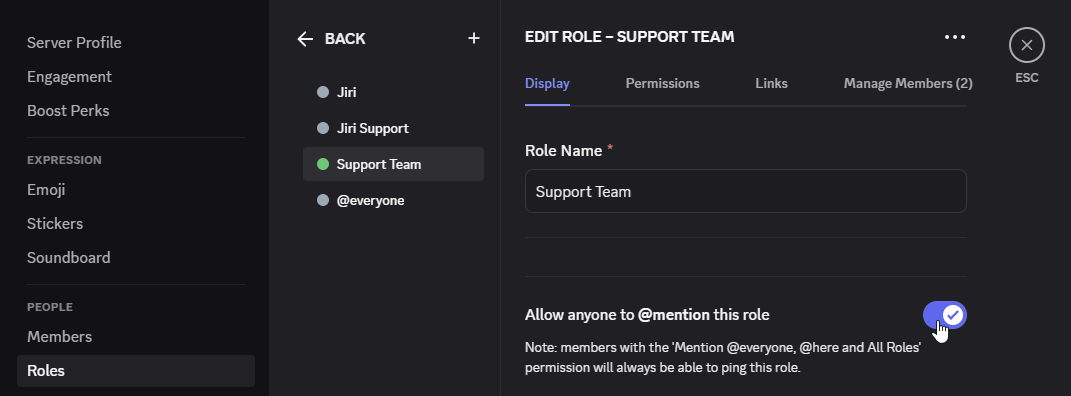
Before you start pinging your team like crazy, make sure you've got the support role set up properly in Discord:
- Head to your Discord server settings (Server Settings → Roles).
- Create (or choose) your trusty support role - like
SupportTeam. - Flip the switch on "Allow anyone to @mention this role" so your team gets notified.
- Double-check that this role can actually see and participate in your support channel - otherwise, they'll just feel left out.
🚦 Step 1: Configuring Role Assignment (Optional, but cool!)
Automatically assign Discord roles to notify your team instantly when new tickets appear:
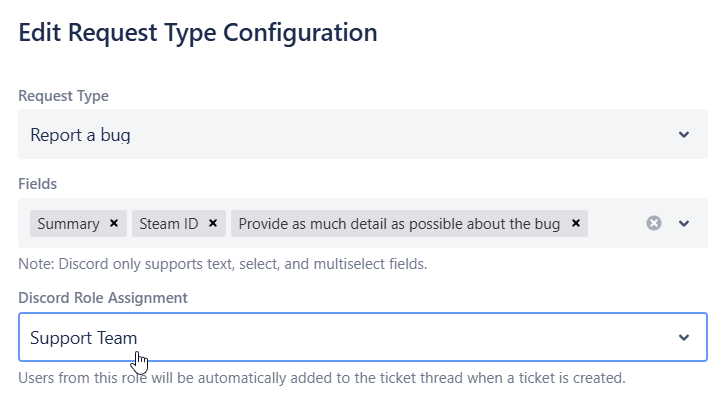
- In Jira, navigate to Project settings → Apps → Discord → Tickets.
- Edit your ticket configuration, then pick your request type.
- Under Role Assignment, choose the Discord role that matches the experts who'll handle this ticket.
💡 Quick fact: Use roles wisely - like assigning @SupportTeam for technical issues or @BillingTeam for payment queries.
🔒 Step 2: Closing & Locking Threads
No one likes messy threads lying around. Set automatic cleanup rules in your ticket configuration under Ticket Flow Options → "When Jira ticket is resolved then:"
| Action | Effect | User Access | Best For |
|---|---|---|---|
| Do nothing | Thread stays open | Full access | Ongoing discussions |
| Close Thread | Hidden from active list | Can read and continue | Resolved but accessible |
| Lock Thread | Read-only | View only | Finalized conversations |
| Close and Lock | Hidden + read-only | View only via link | Clean closure |
⏰ Note: Ticket threads will automatically close after 7 days of inactivity to keep your channels tidy.

🤖 Step 3: Automatic Jira Resolution from Discord
Feeling brave? Let automation handle Jira ticket closures based on Discord thread closure:
- Still in Ticket Flow Options, enable "Auto-resolve Jira Ticket on Thread Closure".
- Once a Discord ticket thread is manually closed (by moderators or automatically due to inactivity), Jira tickets automatically move to a closed state.
🤖 Cool tip: This feature uses AI to analyze thread conversations and automatically selects the best resolution reason based on context - saving you from guessing!

🎯 Best Practices
- Clearly define ticket lifecycle expectations with your team to avoid confusion.
- Regularly review auto-closed tickets (especially if using AI features) to ensure everything's on track.
- Limit your request types to keep things intuitive - too many options can confuse your users.
🚨 Quick Troubleshooting
- Roles not assigning? Verify role permissions and bot permissions in Discord.
- Threads not closing or locking? Confirm you've set up your thread closure actions correctly and that the bot has the "Manage Threads" permission in Discord.
🔐 Permission check: To verify the bot has proper permissions, go to Server Settings → Roles, find the Jiri Support role, and ensure "Manage Threads" is enabled. This permission is required for the bot to close, lock, open, and unlock threads.
Still scratching your head? No worries - we're always here at the Discord for Jira Community.
Happy automating! ⚙️