
Connect Discord Server
📋 Before You Jump In: Make sure you've completed the previous guide: Install the App
Time to connect your Discord server to Jira and enable your first project. This is a two-step process:
- Connect Discord server instance-wide to your Jira site
- Enable specific Jira projects to use the connected Discord server
We'll have you chatting with your team in no time!
Step 1: Connect Your Discord Server
First, let's connect your Discord server to your entire Jira instance.
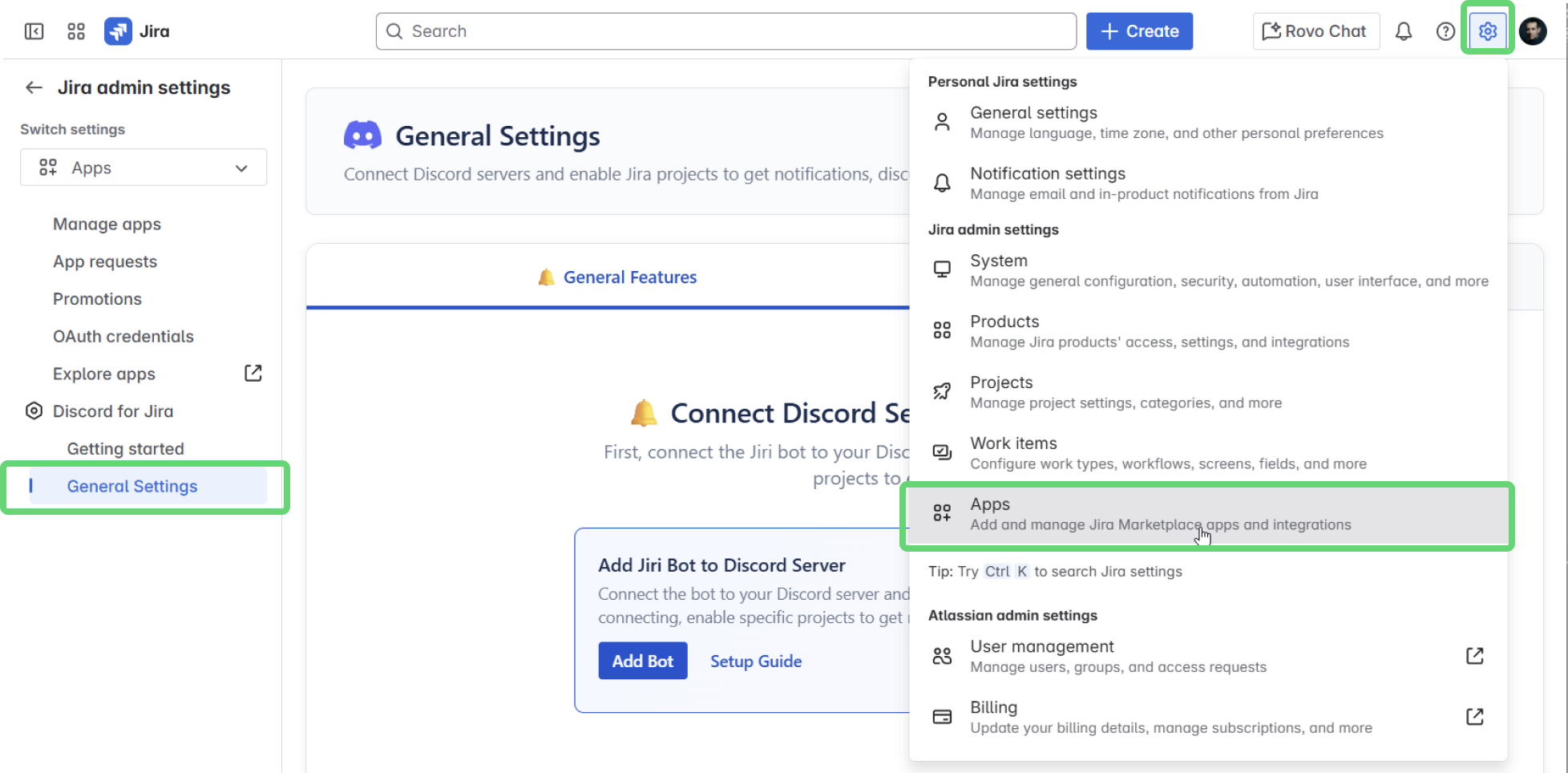
- Navigate to General Settings:
- Click the Settings gear icon in your Jira header
- Select Apps from the menu
- Under Discord for Jira, click General Settings
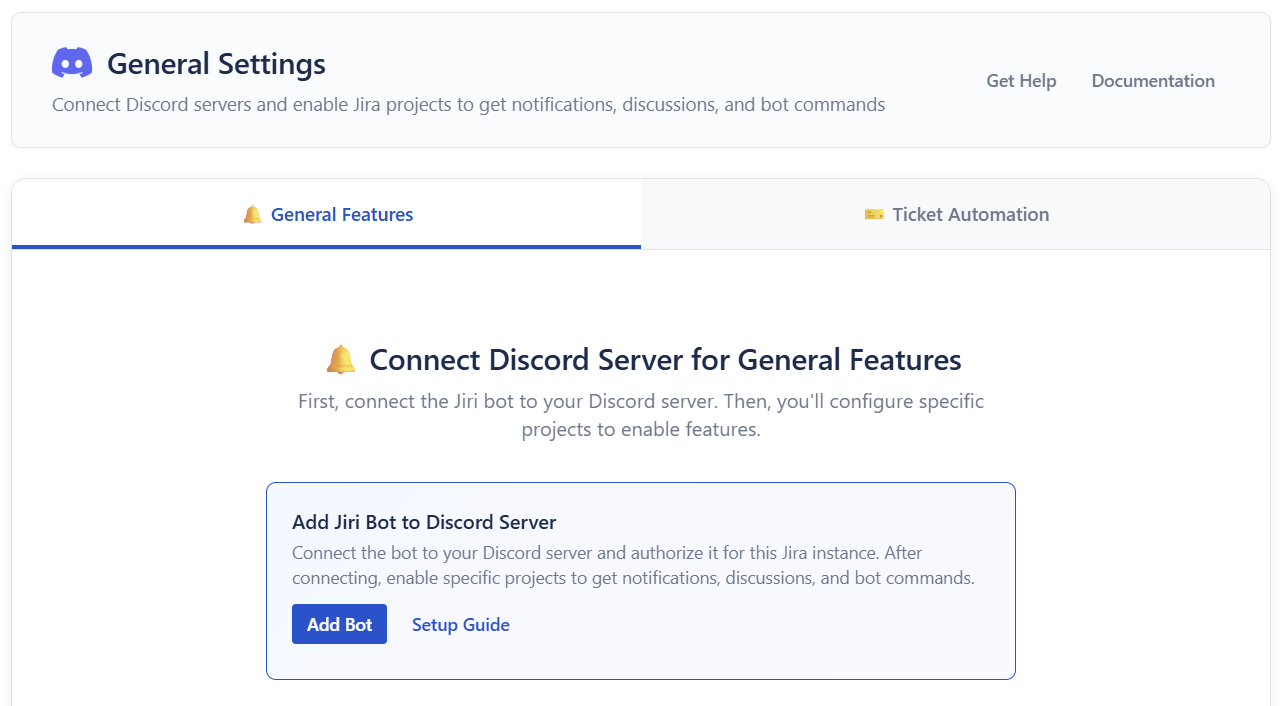
- Add Jiri Bot to Your Discord Server:
- Click Add to Discord to start the connection process
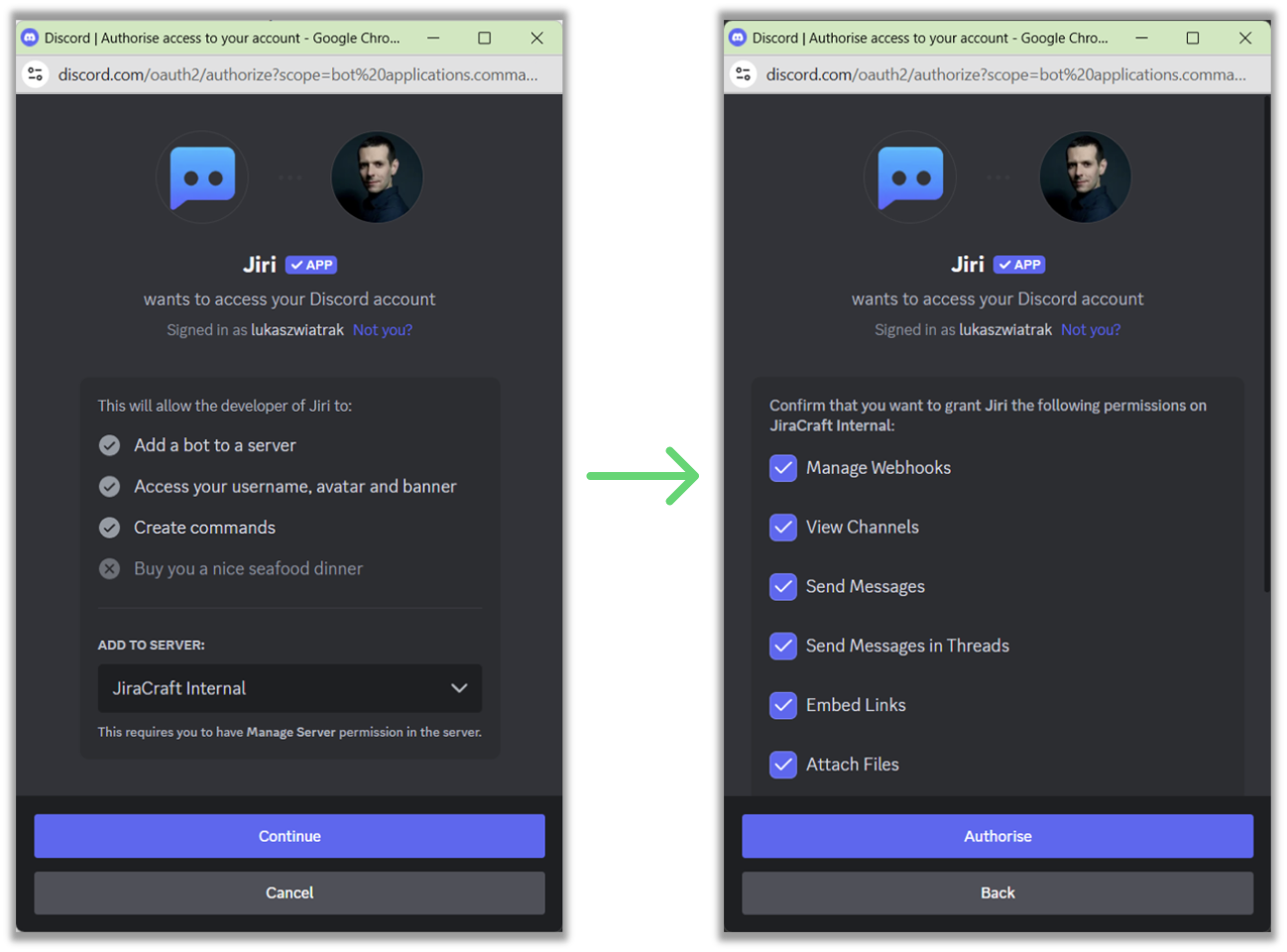
- Authorize Jiri in Discord:
- You'll be redirected to Discord to authorize the bot
- Select your Discord server from the dropdown
- Click Authorize to grant the necessary permissions
💡 Quick tip: Jiri needs permissions like sending messages and managing threads to work properly - all standard stuff!
- Confirm Connection:
- Return to Jira - your Discord server should now appear in the connected servers list
- Success! Your server is now available across all Jira projects
Step 2: Enable Your First Project
Now let's enable a specific Jira project to use your connected Discord server.
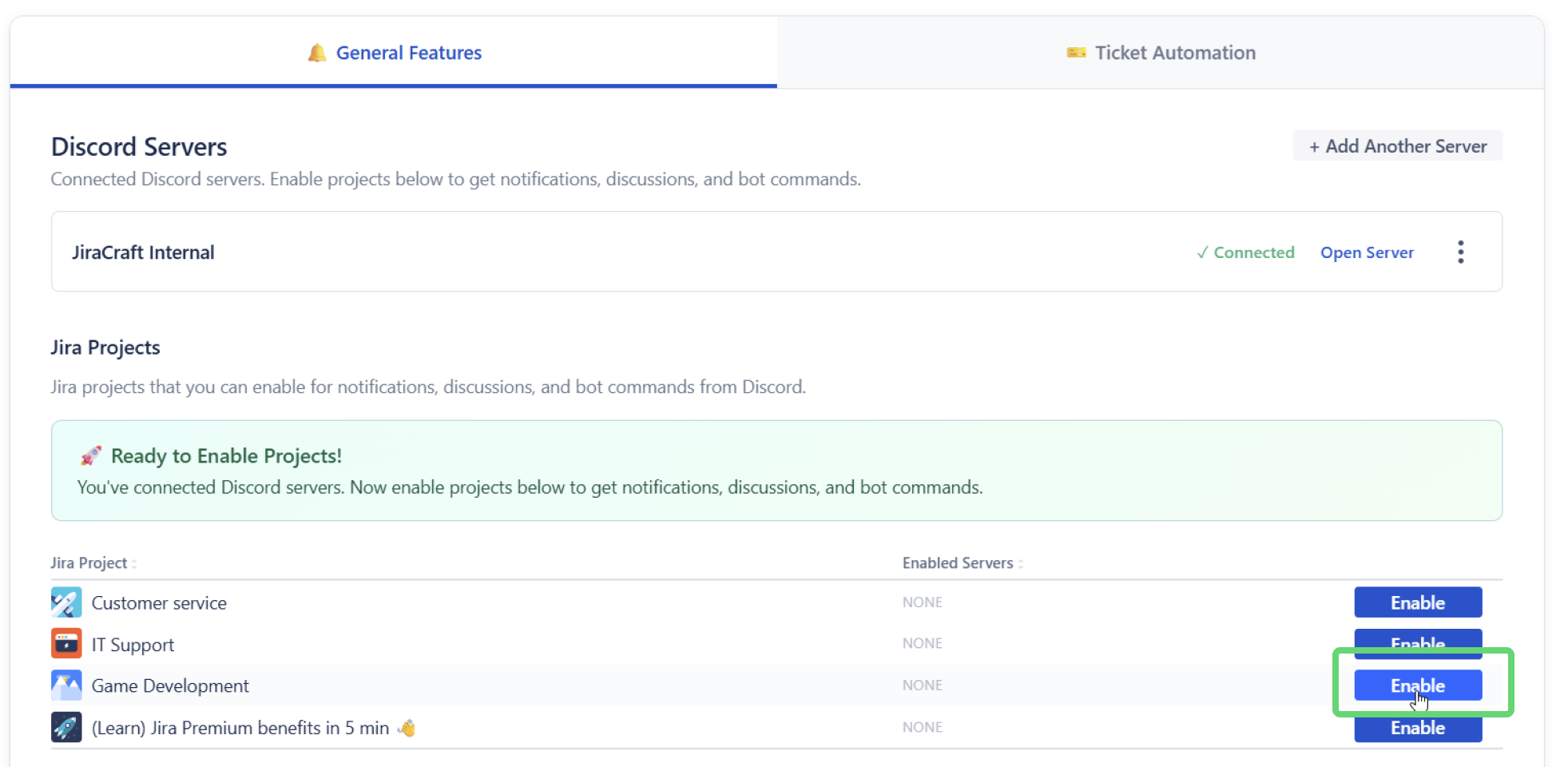
- Choose Projects to Enable:
- In General Settings, scroll down to Jira Projects
- Find the project you want to connect and click Enable
- Select which Discord servers to enable for this project
💡 Pro tip: You can also enable projects individually by going to each project's settings, but doing it from General Settings gives you a nice overview of everything.
Only Jira admins can access Global Settings. If you do not see the "Manage Discord servers" shortcut in a project, ask a Jira admin to open Global Settings.
Quick Troubleshooting
🤔 Don't see your Discord server during authorization? Double-check you're logged into the correct Discord account and have "Manage Server" permissions.
🤔 Can't find General Settings? Make sure you have Jira admin rights - only admins can manage Discord server connections.
Still stuck? Drop by our Discord for Jira Community - we love helping out!
Enabling Additional Projects
💡 Need to enable more projects? You can enable as many Jira projects as you want to use with Discord:
- Go back to General Settings → Jira Projects
- Click Enable for each project you want to connect
- Each project can use any of your connected Discord servers
You can also enable projects individually from each project's settings under Project Settings → Apps → Discord.
What's Next?
Great work! Your Discord server is connected and your first project is enabled. Now you can:
- Configure First Notifications - Set up your first notification rules
- Ticket Automation Guide - Create and manage Service Desk tickets from Discord
Time for a celebratory coffee! ☕️