
Install the App
Ready to connect Jira with Discord? You're in the right spot. This quick guide walks you through everything - from signing up for Jira to installing the Discord for Jira app. Let's make sure it's quick and painless!
Step 1: Set Up Jira Cloud
💡 Already have Jira? Skip to Step 2! Just make sure you have Jira Admin permissions to install apps.
Never used Jira? No worries, here's how you get started (it takes less than 5 minutes!):
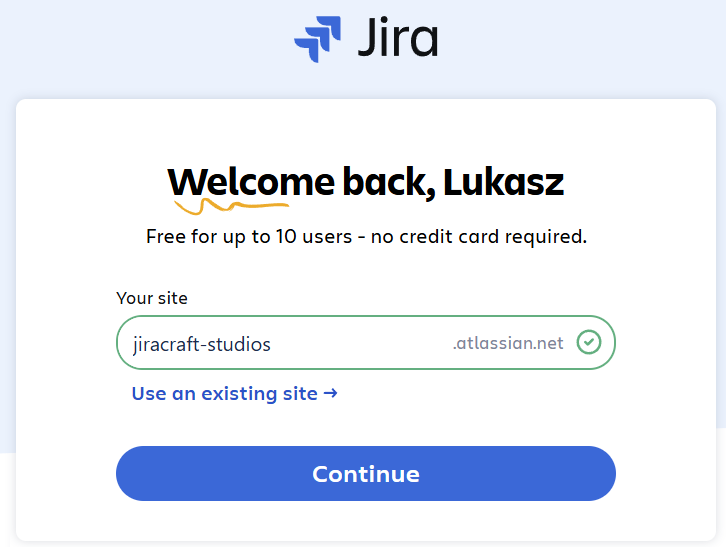
- Sign up for Jira Cloud:
- Go to Jira's signup page.
- Click Get it free and follow the easy prompts.
💡 Quick tip: Jira's free plan covers up to 10 users, perfect for small teams or cozy startups.
- Create your first project:
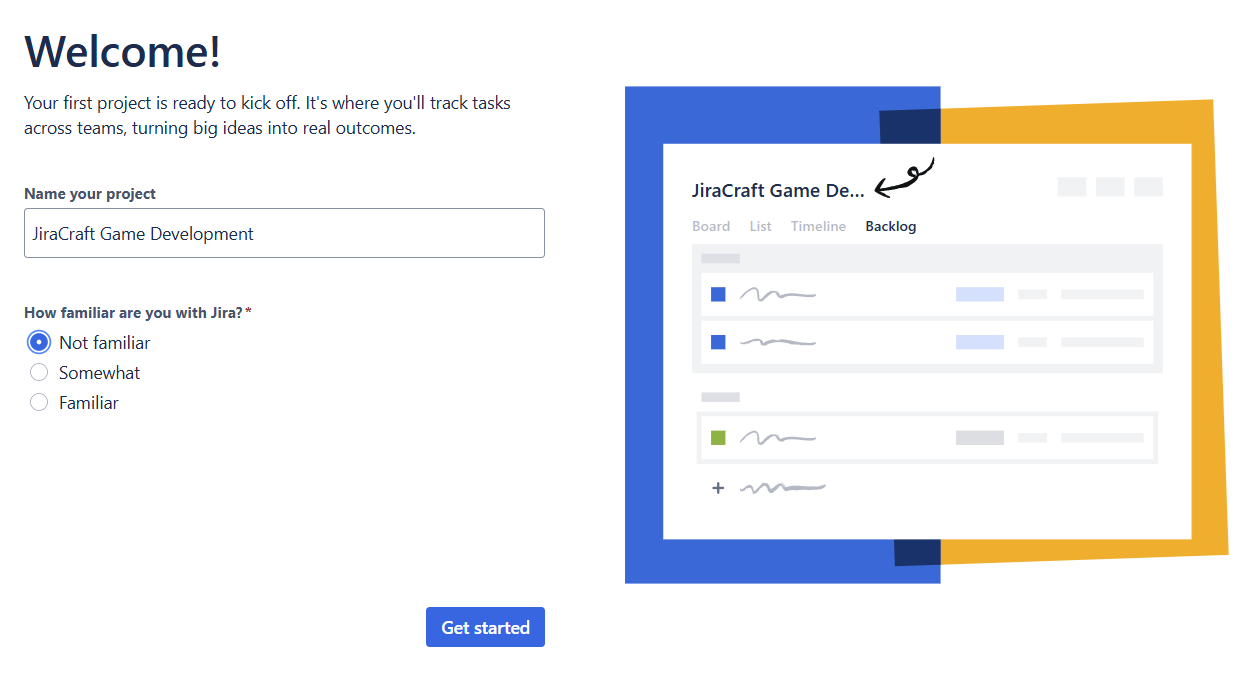
- Log in to Jira, click Projects → Create project.
- Choose a project template (like Scrum or Kanban).
- Name your project and click Create.
Need extra details? Atlassian’s got you covered: 7 simple steps to get started with Jira.
Step 2: Set Up Discord
💡 Already have Discord? Skip to Step 3! Just make sure you have admin or owner permissions to add bots to your server. Check your permissions
First time using Discord? Here's the quick-and-easy way:
-
Create your Discord account:
- Visit Discord’s registration page.
- Fill out your info and hit Continue.
-
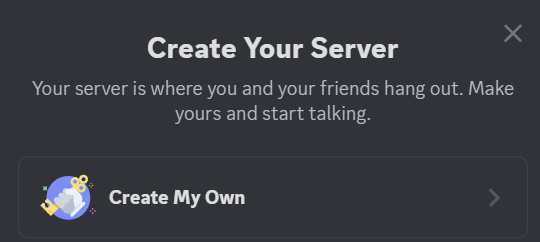
Create your Discord Server:
- After logging in, click the "+" (Add Server) icon on the left.
- Select Create My Own and follow the prompts.
Still confused? Discord’s How do I create a server? guide has your back.
Step 3: Install Discord for Jira
Time for the main event - let’s install Discord for Jira:
- Click Apps → Explore more apps in Jira.
- Search for Discord for Jira.
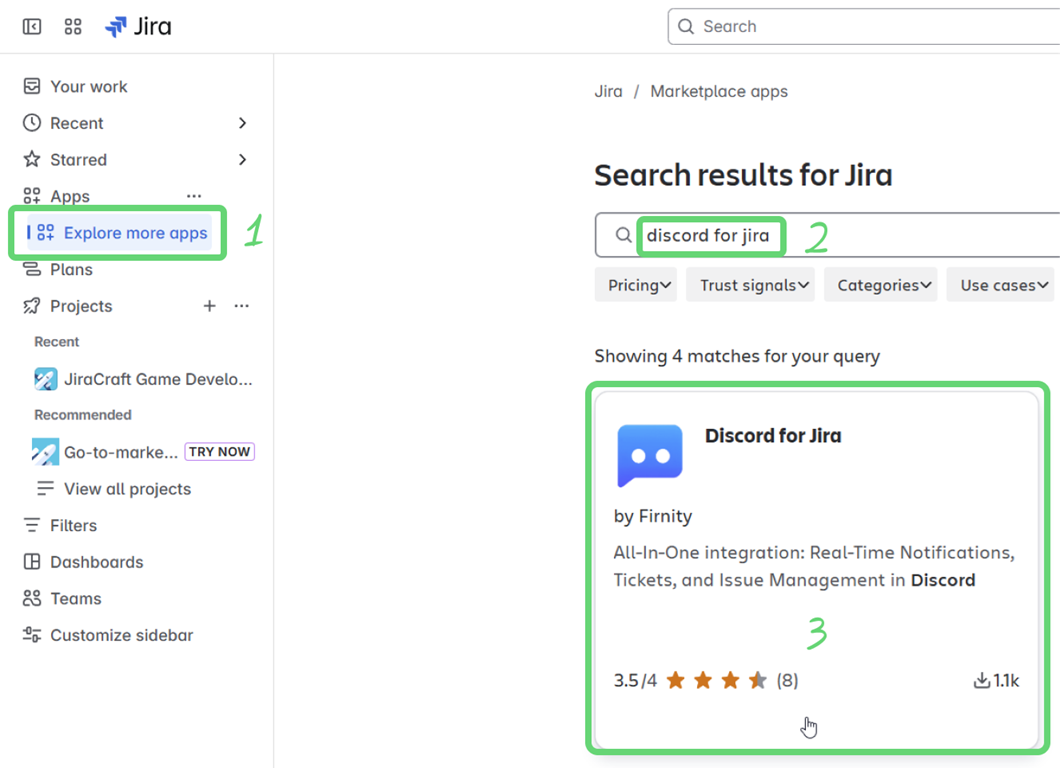
- Select Discord for Jira from the results.
- Click Try it free and follow the steps (you might need to select your Jira Cloud site).
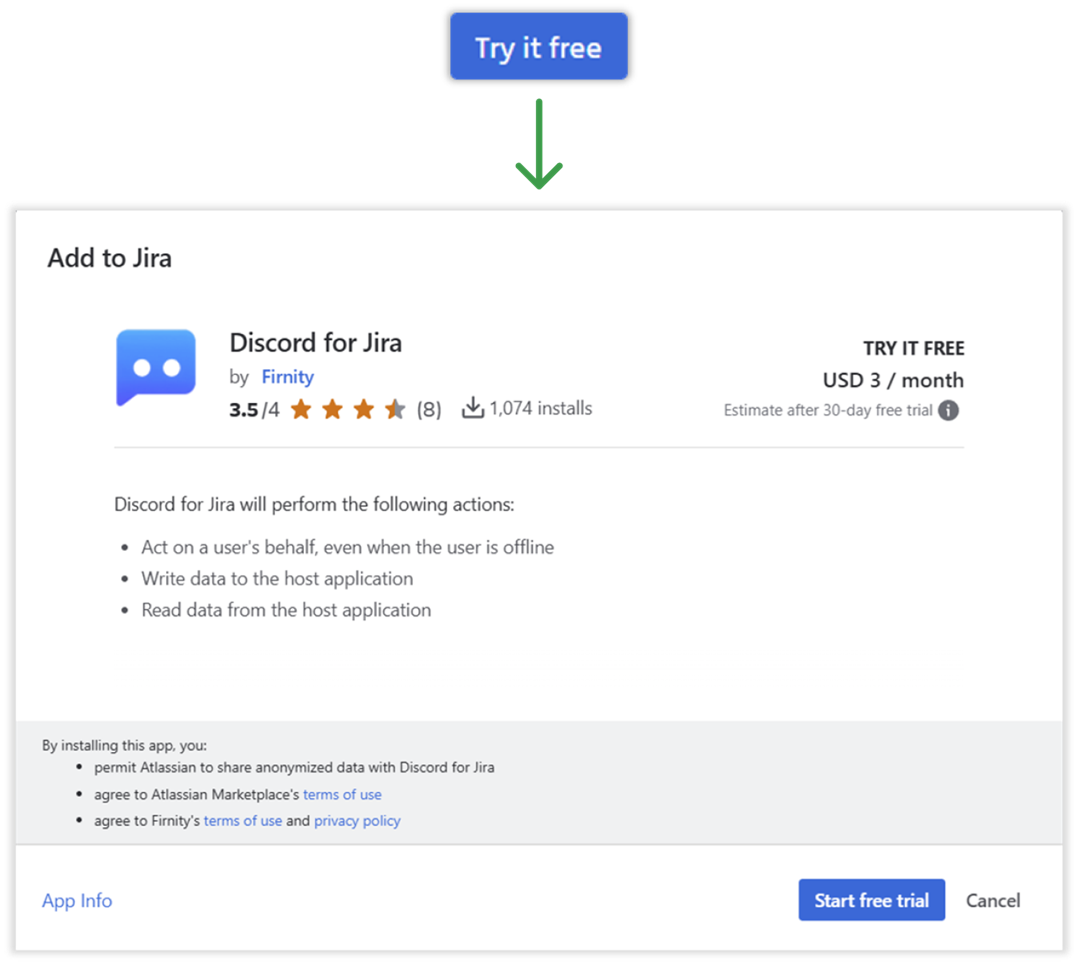
💡 Alternative: You can also install Discord for Jira directly from the Atlassian Marketplace listing.
⏰ Quick note: If you've just created a new Jira site, Atlassian might need a few minutes before you can install apps. Grab a coffee, then come back and try again.
Step 4: Verify Installation (Let's double-check!)
Let's ensure everything went smoothly:
- In Jira, click on three dots next to Apps, then choose Manage apps.
- Look for Discord for Jira - its license should be marked as Valid.
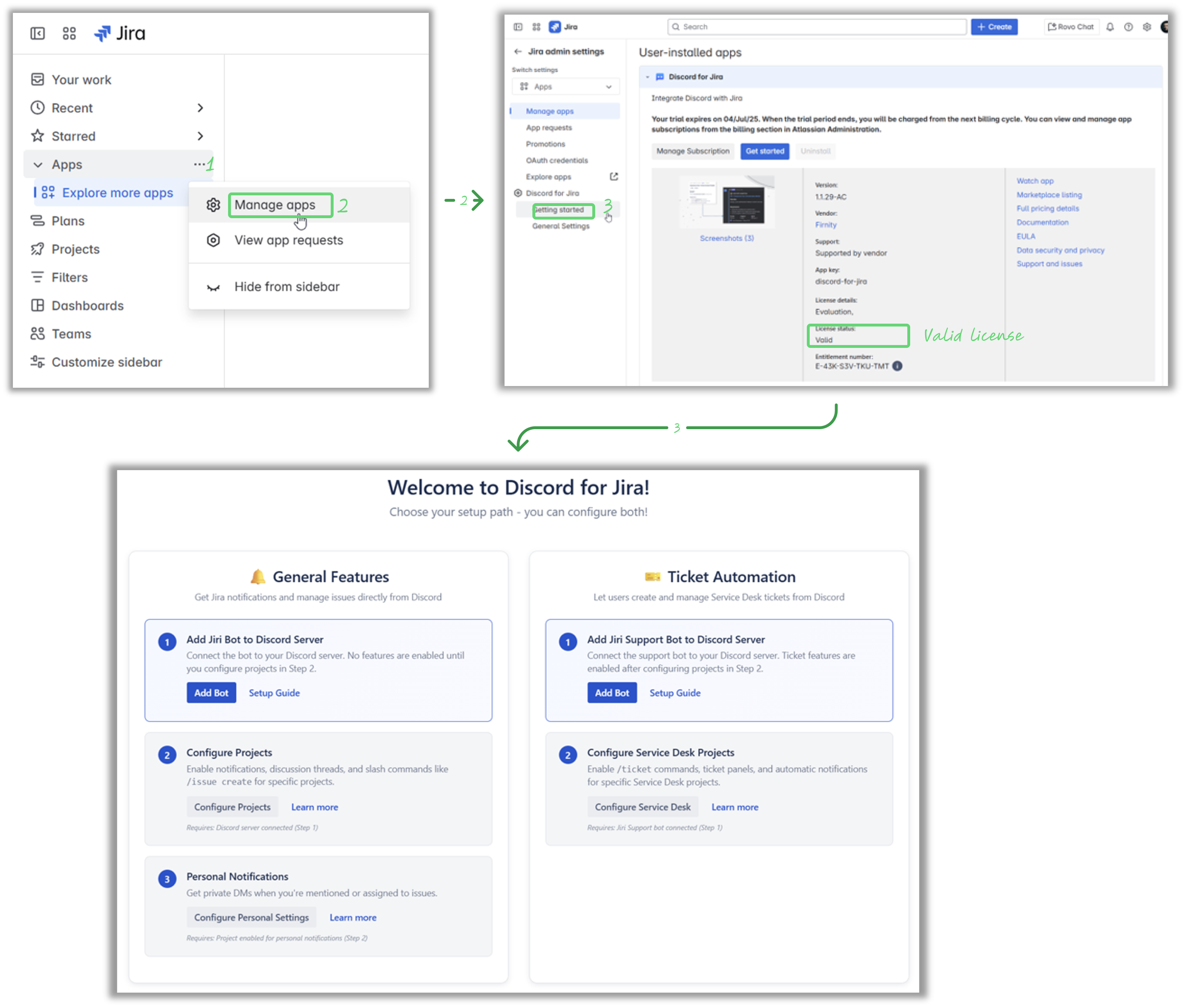
✅ Pro tip: If Discord for Jira doesn't show up here, double-check your steps or ask us in our support community.
⏰ Heads up: If you don't see the getting started or settings page after installation, grab a coffee and wait a couple of minutes - sometimes it takes a bit longer for everything to show up.
Next Steps
You nailed it! 🎉 Next, let's actually get Jira and Discord talking:
- Head over to Connecting a Jira Project to Discord.
Questions? Feeling stuck? Our friendly Discord for Jira Community is here to help - drop in anytime!