
Configure First Notifications
📋 Before You Start: Make sure you've completed the previous guide: Connect Discord Server
Let's create your first notification rule the easiest way: from the Global Settings page.
Open Global Notifications
- Go to Jira Settings → Apps → Discord for Jira → General Settings.
- Open the Notifications tab.
- Click Configure Notifications.

💡 Quick tip: Creating your first rule globally is faster, and you can still target a single project in the rule.
Add Rule Name
- Rule name - something clear like "Bug Alerts".

Choose What to Monitor
- Select project - choose one project or All Enabled Projects.
- JQL filter - leave empty for all issues, or add a simple filter (e.g.,
issuetype = Bug).

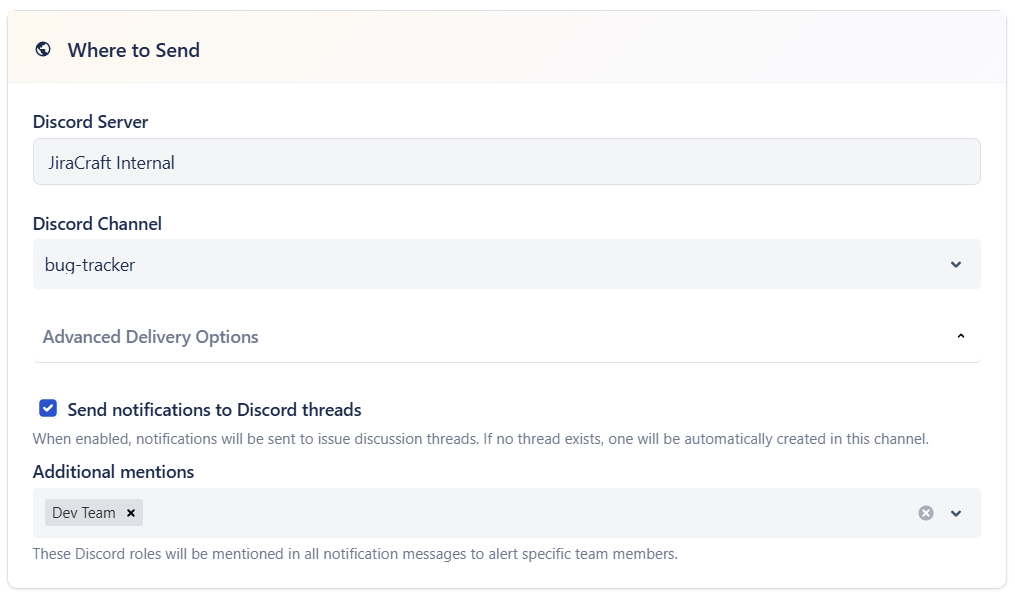
Pick Where to Send
- Confirm the Discord Server.
- Pick the Discord Channel where the bot should post.
- Open Advanced Delivery Options (optional) and consider enabling Send notifications to Discord threads to keep channels tidy.
Set When to Notify
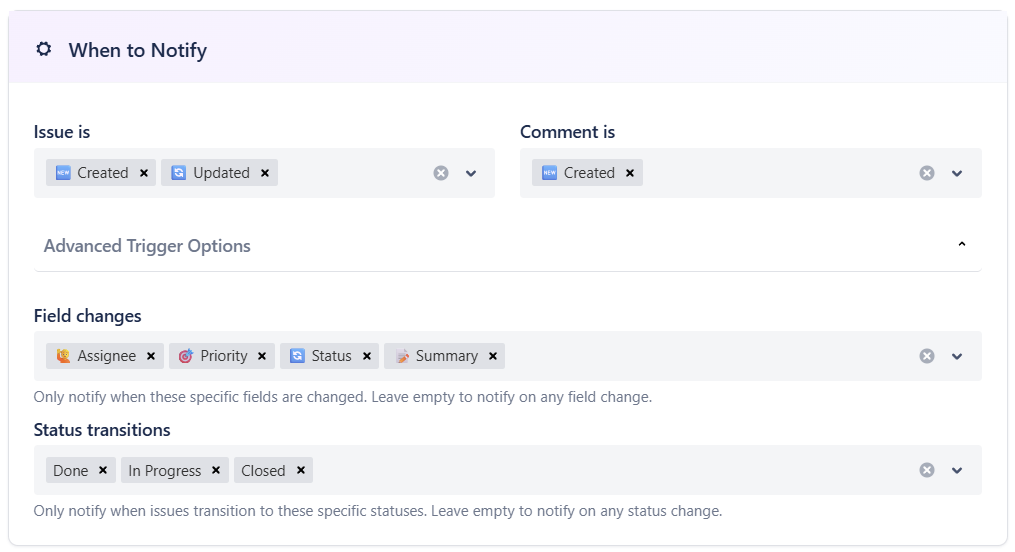
Start simple. Recommended first setup:
- Issue is: Created, Updated
- Comment is: Created
- Advanced Trigger Options: leave default
Choose Message Content
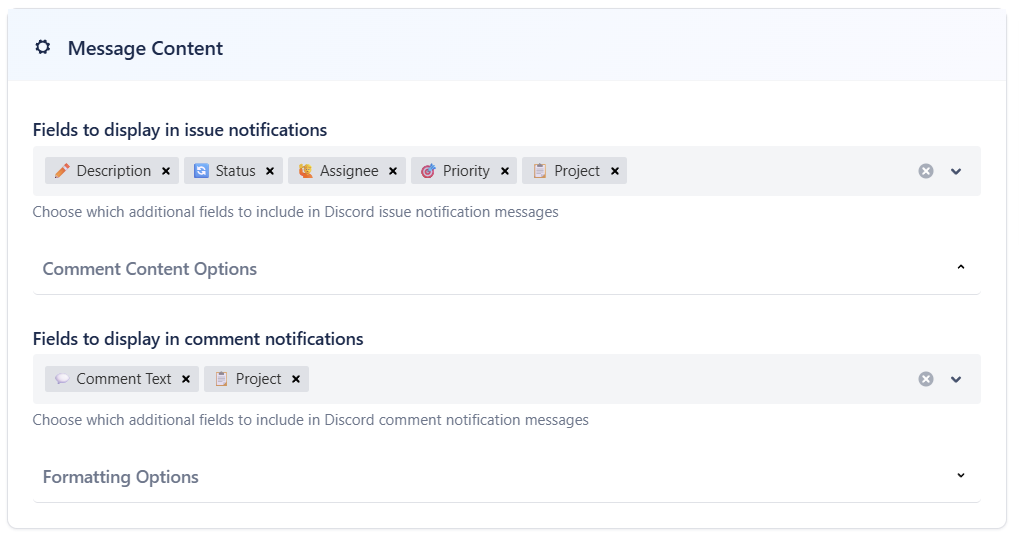
Add a few useful fields to the message. Suggested starters (Software projects):
- ✏️ Description
- 🔄 Status
- 🎯 Priority
- 🙋 Assignee
- 📋 Project
- For comment notifications: 💬 Comment Text, 📋 Project
Service Desk projects can also show: 🎫 Request Type, 🧵 Ticket Thread (recommended).
Formatting Options (recommended ON for most teams):
- Show images in notifications
- Show only changed fields
- Mention Discord users when mentioned in Jira
- Show change type emojis
📘 Need more fields? The full 16+ field list is documented in Configure Notifications.
Enable Quick Actions (optional)
Pick buttons to show on notifications:
- Software: 💬 Add Comment, 🙋 Assign to me, 🔄 Change Status
- Service Management: 🗨️ Reply to Customer, 💬 Add Internal Comment, 🙋 Assign to me, 🔄 Change Status
📚 For details and permissions, see Work with Issues.
Save and Test
- Click Create Rule.
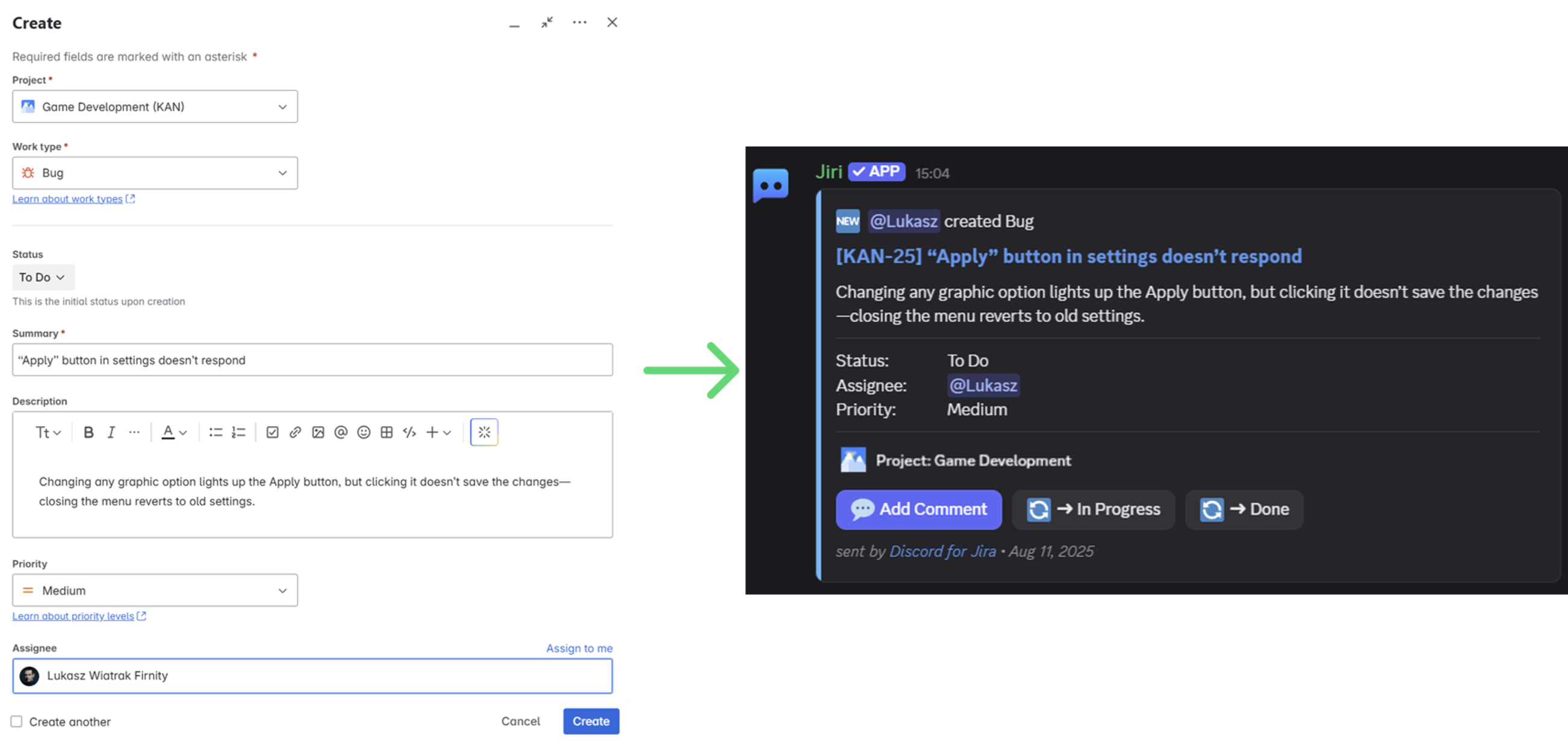
- Create a test issue or add a comment in Jira.
- Check your Discord channel - you should see the notification 🎉
Manage Rules
- Duplicate existing rules to speed up setup.
- Enable/Disable rules without deleting them.
For all options and advanced settings, see Configure Notifications.
Quick Troubleshooting
🤔 No message in Discord? Ensure the bot can post in the selected channel.
🤔 Nothing triggers? Your JQL might be too strict - test it in Jira first.
Need more help? Visit Troubleshooting Notifications or say hi on our Community.