 Discord for Jira
Discord member · Jira site admin for configuration
Preview Jira links in Discord
Paste a Jira issue link in Discord to see a preview where your server and issue allow it.
- Preview appearsThe connected server allows previews and the issue can be shown in the channel.
- Only the link appearsCheck the setting and access. Open the issue in Jira to read it privately.
Check a link preview
Paste the Jira issue URL in your Discord channel. If the preview is allowed there, Discord shows the issue card below the link. Open Jira for details that need private access.
Enable link previews
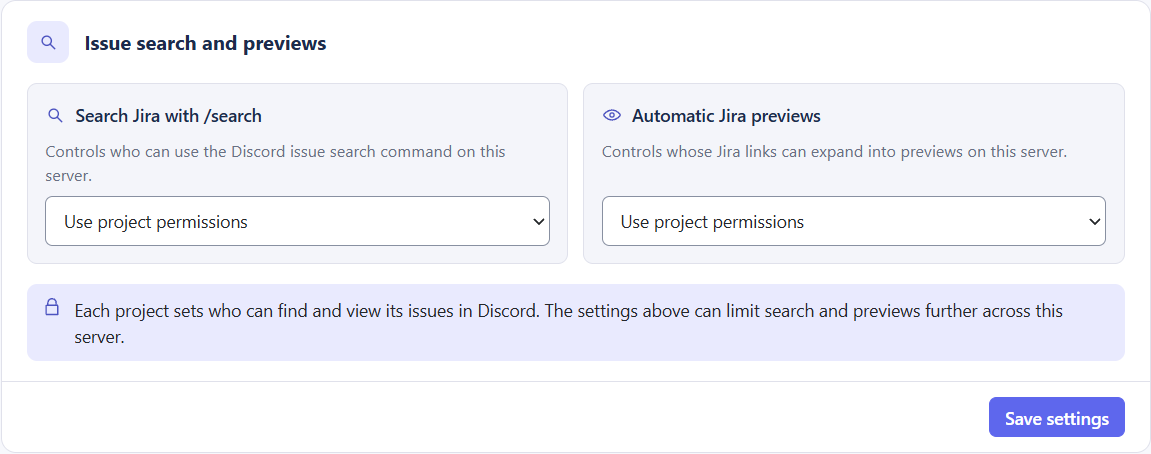
- In Jira site settings, open General, then choose Issue search and previews on the connected Discord server’s row.
- Under Automatic Jira previews, choose Use project permissions, Linked Jira accounts only, or Off. Select Save settings and test a link that is safe to show in the channel.
- If no card appears, check Automatic Jira previews on the server and Find and view Jira issues under Permissions in the project’s Overview. Both settings must allow the person posting the link. Anyone who can read the channel can see the preview.
Search Jira from Discord · Post a Jira issue card in Discord