 Discord for Jira
Jira site or project admin
Show Jira issues in Discord with a custom command
Set up a command such as /open-bugs that shows Jira issues matching your filters.
Set up the command
- Open Commands, choose the connected Discord server, and select New issue list. Use the suggested Issue list name and
/issuescommand, or edit either value. - Choose the Jira source. Under Share this list in Discord, choose whether people can post a copy where they open the list.
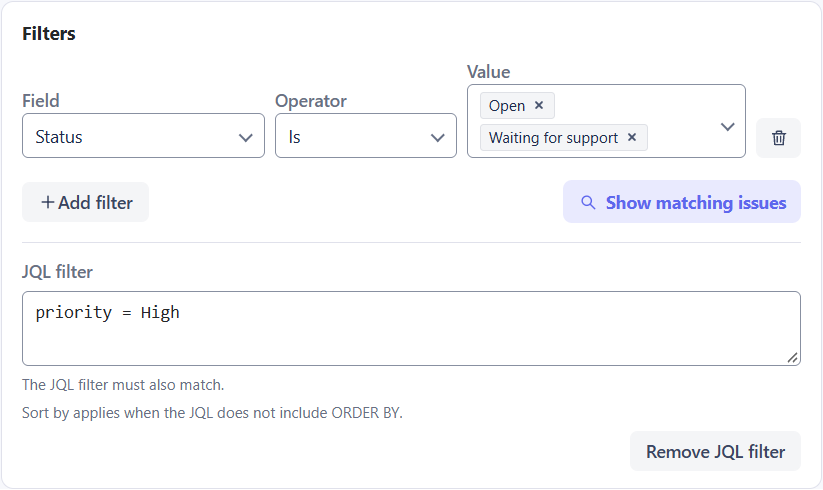
- Select Add filter to add field conditions, select Add JQL filter to enter a query, or use both. Choose Show matching issues to browse results before saving. Set the fields shown in each row and in Details.
- Save the list, then run its command in Discord. Check the result using a linked account that has the same Jira access as a typical teammate.
Filters and fields
| Field | Example |
|---|---|
| Assignee | Choose Me for your assigned issues. |
| Requester | Choose Me for issues you reported. |
| Sprint | Choose Open sprints to include issues in active sprints. |
| Fix version | Choose a version for your Jira source. |
For filters with a list of values, select as many as you need. Is matches any selected value. Is not excludes every selected value. Use Add sprint ID to include a specific sprint.
For several field conditions, choose All filters or Any filter. An entered JQL filter must also match. When typing JQL, choose suggestions for fields, operators, functions and values. The editor shows Valid JQL when Jira confirms the query and displays any Jira diagnostics below it. Set the sort order, field visibility and language. A JQL ORDER BY overrides Sort by. Jira field values keep their original wording.
Show matching issues uses your current Jira access. Preview shows the first matches on the Discord card. Details previews the first issue. When you allow posting, the card preview shows the channel copy, which includes only issues Jira can confirm have no issue security level. In Discord, Refresh, Next, Back and Details use the member’s current Jira access.
Open a team list
Run the team’s custom list command, or choose the server app’s /issue-list. If Discord offers several lists, pick the one your team uses.
- Private resultThe linked Jira account controls which issues appear.
- Channel postThe saved sharing settings determine which eligible fields people in the channel can see.
Share it deliberately
Results start private. With Allow posting, people who can send messages in the channel can select Post to channel to share a copy there. This works when they run a list command or open one from a panel. Allow posting with Refresh adds a Refresh button that updates the posted copy in place.
Open full list checks each member’s Jira access and opens their results privately. A channel post includes the configured visible fields for issues Jira can confirm have no issue security level.
To send a preview from Jira settings, choose Current Jira matches or Example Jira data, choose a Preview channel, then select Send preview. Lists set to Private only can send Example Jira data. The channel choice applies to that preview.
Lists for the current member
Lists using Me or another current-member expression stay private.
Put the list to work. Schedule a summary or add a shortcut to a panel.