 Discord for Jira
Jira site or project admin
Publish a Discord panel with buttons
Post buttons in a Discord channel or forum so your team can see issues, create issues, or open tickets.
Build and publish
- Open Panels and select New panel.
- Review the preselected Discord channel or forum and first button when available. You can change the destination, edit the button label, or add buttons for other saved lists, issue forms, and ticket types.
- New buttons start with a suggested emoji. Select the emoji to pick a shortcut, search for another emoji, or clear it. Check the buttons in Preview. Select Save & publish, then choose Open in Discord on the saved panel. Try a button on the published message.
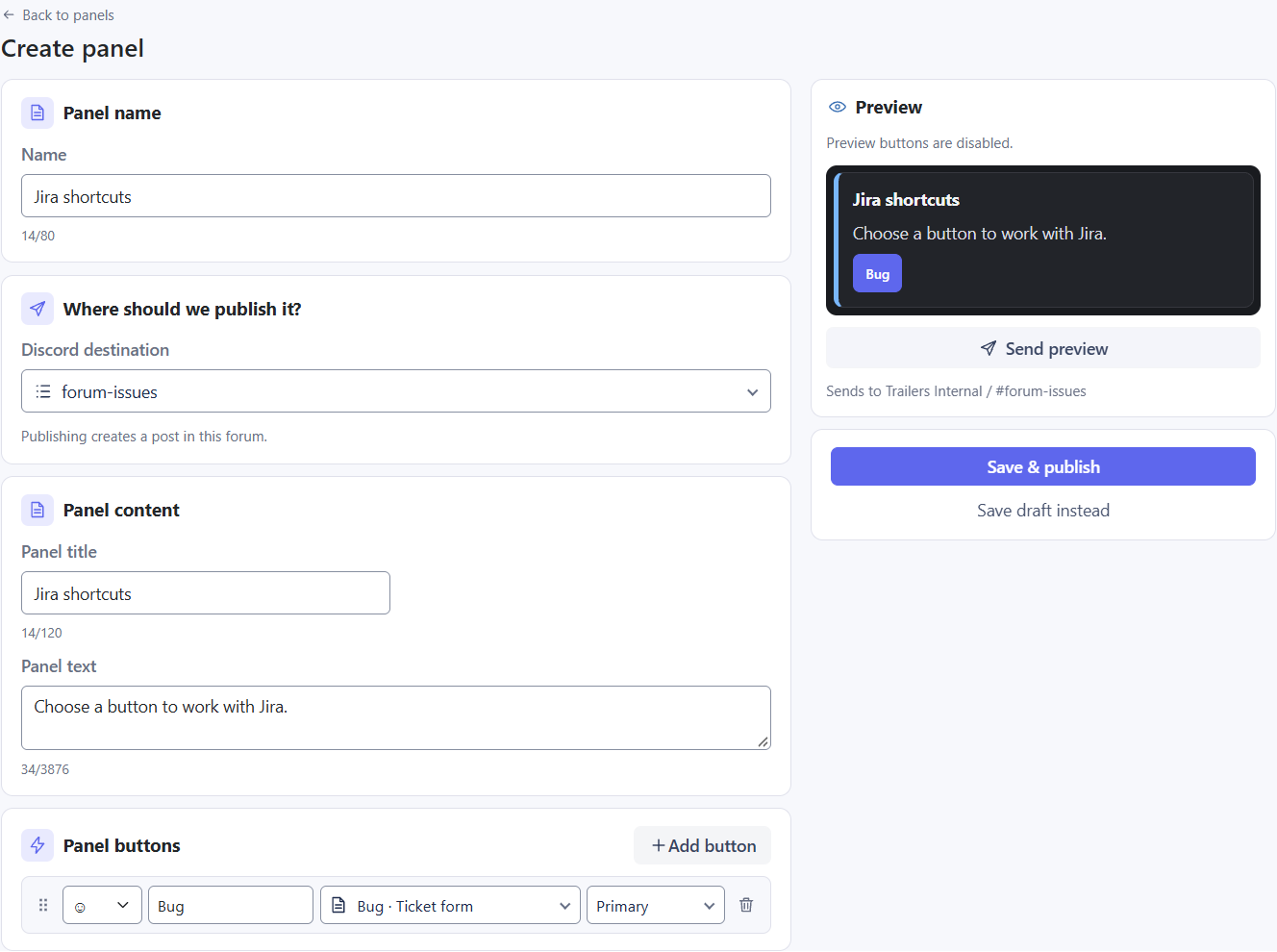
- PreviewCheck labels and destination with inactive buttons.
- Save & publishCreate or update the Discord message.
- Test the actual messageOpen one published action.
Maintain an existing panel
Use Save & publish changes after editing. With the same destination, Discord updates the existing message. If you move the panel, open the published message in the new channel or forum. Before deleting a used list or form, edit the panel to replace or remove the action that refers to it.
Test buttons on the published message. Preview buttons are inactive.