 Discord for Jira
Jira site or project admin
Send a scheduled Jira issue summary to Discord
Post matching Jira issues to Discord on a schedule.
Configure the summary
- Open Summaries and select New summary. Keep or edit the suggested name and choose which Jira issues to include.
- Choose the Discord channel or a linked member who can receive the summary by DM. Set the schedule and its time zone.
- Keep Only send when there are results enabled to skip empty sends. Turn it off to configure an empty message.
- Use Add filter for Jira fields such as status or sprint. Is matches any selected value in a row. Is not excludes every selected value. Use Add JQL filter to add a query. When you use both, the query must also match.
- Open Preview content and select Current Jira matches to see the current results. Check List and, if you enabled the Details action, check Details too. Select Send preview to send it to the channel or linked member selected in Where should we send it?. Select Save summary when the configuration is ready.
- On the saved summary, choose Run now to run it immediately. Each run checks Jira using the summary’s filters.
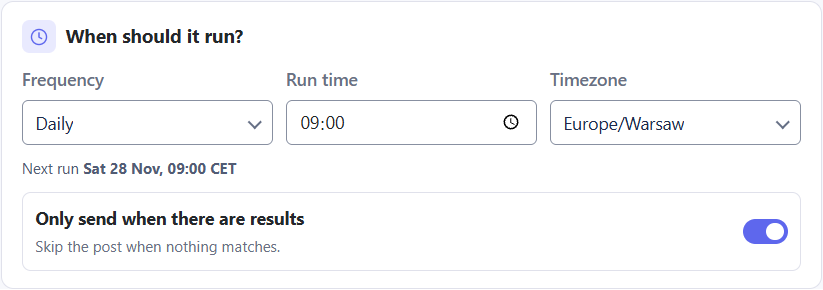
- Choose a saved listIt defines which issues to query.
- Run on a scheduleThe rule queries Jira at delivery time.
- Read HistoryConfirm the post or check why the run skipped.
Check the result
Open History to check the run, including why it skipped or failed. If the run shows Sent, open Discord to confirm the message.
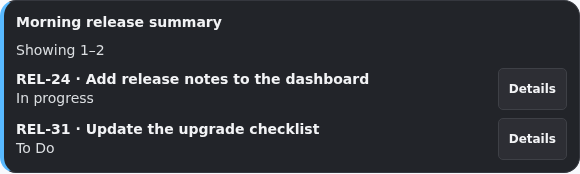
For a channel summary, choose issues suitable for sharing. Show more and Details, when available, use the reader’s linked Jira account.