 Discord for Jira
Fix a button on a Discord panel
Start with the button that failed and the Discord message it belongs to.
Find the live panel
- In Jira, open Panels and find the saved panel. Select Open in Discord and test the button on that message.
- If the message was a preview, publish the panel first. Its preview controls are inactive.
- If the panel is unpublished or its destination is unavailable, restore the destination permissions or choose a Discord channel or forum where the app can publish. Publish and verify its current Discord message.
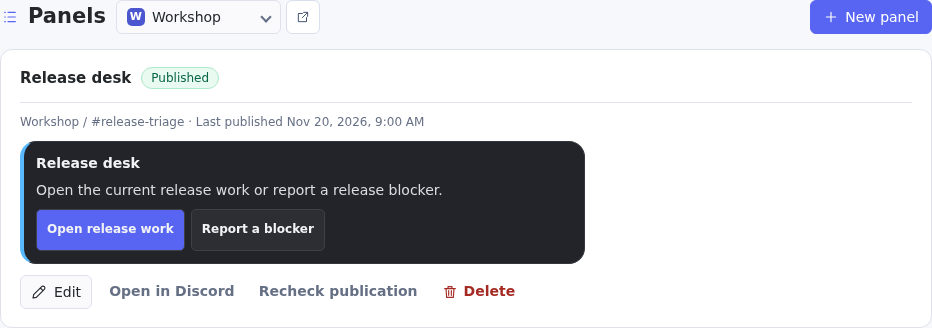
- PreviewPublish the panel before testing a button.
- Published panelOpen the current Discord message and check the button’s target.
Check the action
Open the editor and check the list, form, or ticket type the button points to. Confirm it is still available and that the Jira project is enabled. If the Discord reply asks for Jira access or to link an account, fix that member’s access and retry on the published message.
Publish a Discord panel with buttons · Find the right Jira or Discord permissions