
Create Issues from Discord
Ever had a brilliant idea or spotted a pesky bug mid-conversation on Discord? No need to jump over to Jira - you can quickly create issues right from your Discord chat!
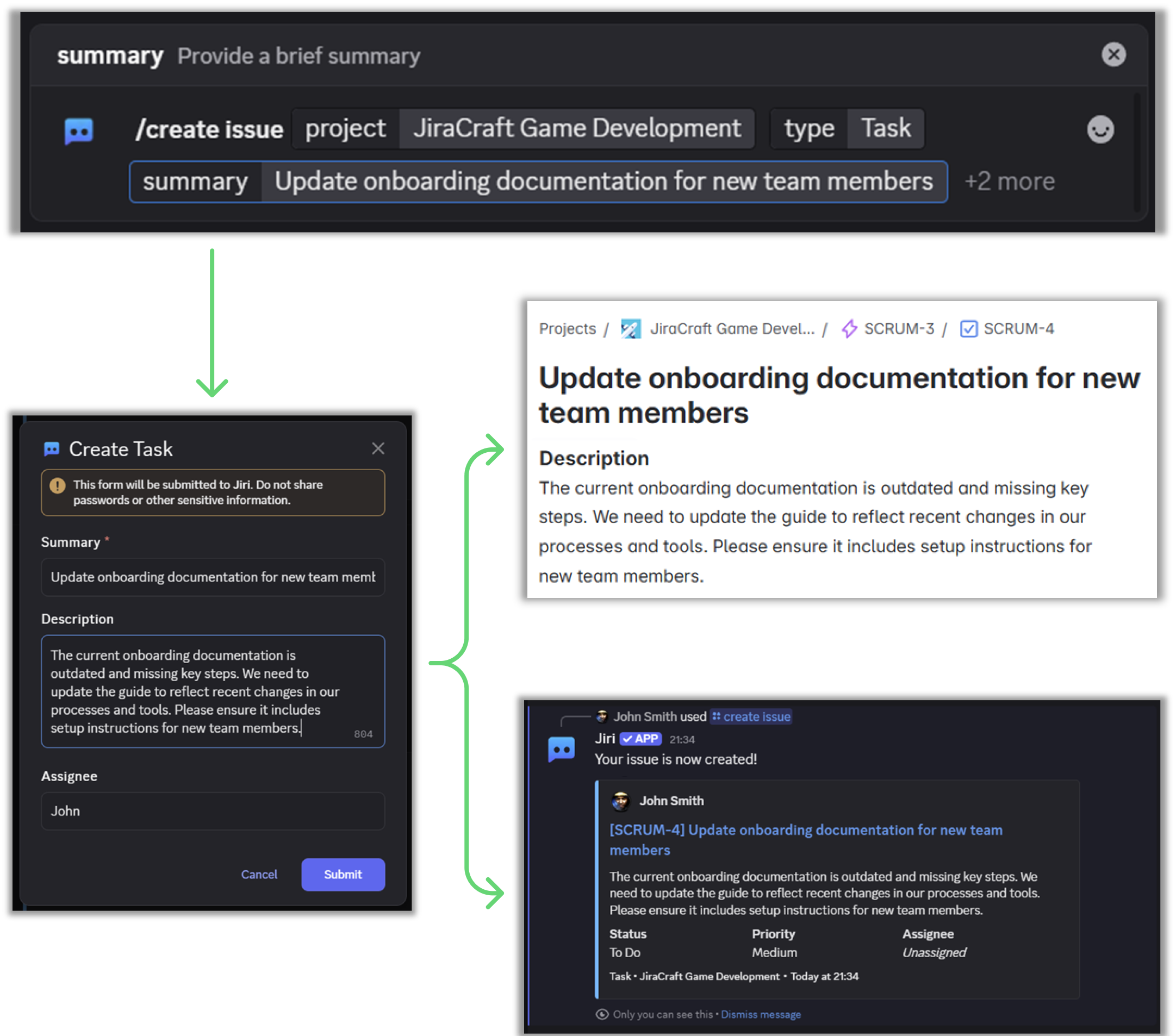
The fields shown below are the default ones. Your admin can customize which fields appear in the /create command and the modal. See Issue Creation Parameters.
📋 Before You Start: Your admin must enable issue creation for your project. You may need to connect your Discord account to create issues under your name.
📝 Creating an Issue from Discord
Type /create in any Discord channel linked to Jira. By default, you'll get a simple prompt asking for a few details:
- Project: Select your Jira project from the dropdown.
- Issue Type: Choose a suggestion for the selected project, or enter an exact issue-type name (case does not matter). Discord also accepts other text, but it must match an issue type in that project.
- Summary: Write a short, clear title.
- Priority (optional): Set urgency.
- Assignee (optional): Enter the Jira user's display name (not their Discord name!).
Next, the issue form opens. If preparation takes longer, a private message says Your issue form is ready. Select Open issue form to continue with the same fields and values. The form session expires after one hour; if it has expired, run /create issue again.
In the form:
- Quickly double-check your details and optionally add an issue description for clarity.
💡 Quick tip: Your admin can change which fields appear in the command and in the modal. See Issue Creation Parameters.
Hit Submit - and voilà, your Jira issue is live!
🚨 Quick Tips
- Use Tab and Arrow Keys to move swiftly between fields.
- Priority and Assignee are optional, but they help your team prioritize work effectively.
- Remember, the Assignee field expects a Jira user's name, not a Discord username.
🧭 Quick troubleshooting
-
Issue type not found
- Select an issue type from the suggestions for your chosen project. A name available in another project may not exist in this one. No issue is created when this validation fails.
-
Creating Jira issues not enabled
- Ask your Jira project admin to enable the "/create issue" command: Project settings → Apps → Discord → "/create issue command permission". See Bot Permissions.
-
Creating issues as guest not enabled
- Either connect your account (see the User Guide) or ask the admin to allow guests by setting "/create issue" to "All Discord server users" in Project settings → Apps → Discord.
-
You do not have permission to create issues in the connected projects
- Ask your Jira admin to grant you the "Create Issues" permission in the target project (Project settings → Permissions).
-
The app does not have permission to create issues in the connected projects
- Ensure the app has the required project permissions (add
atlassian-addons-project-accessto the appropriate permission). See Fixing Project Permissions.
- Ensure the app has the required project permissions (add
Jira connection unavailable
If the project suggestions say connection unavailable, run /help for recovery steps for that Jira site. Projects on other available sites remain usable.
Open Discord for Jira from Apps in the affected Jira site, then try your Discord command again. If the app is missing, ask a Jira site or organization admin to install it again on the same site.
This concerns the app connection. Linking your personal Jira account again does not refresh it.
❓ Stuck?
Got questions or just want to chat? Visit our Discord for Jira Community - we love hanging out and helping users just like you!